
Overview:
In QNE Optimum, a “Stock Item” represents any product or service that your business buys, sells, or tracks. This includes both physical inventory items (e.g., merchandise, materials) and non-inventory items such as services. Creating a stock item ensures it appears in all relevant transactions—Sales, Purchases, Inventory—and allows consistent reporting and pricing control.
This feature is essential for users handling sales, purchasing, or inventory setup.
Scenario:
Your business has started selling a new product called MASKO HAND CREAM, and you need to record it in QNE Optimum so it can be used in Sales Invoice, Purchase Order, and stock reports. To do this, you must create a new Stock Item with the item code MASKO001..
Procedure:
Step 1: Open the New Stock Form
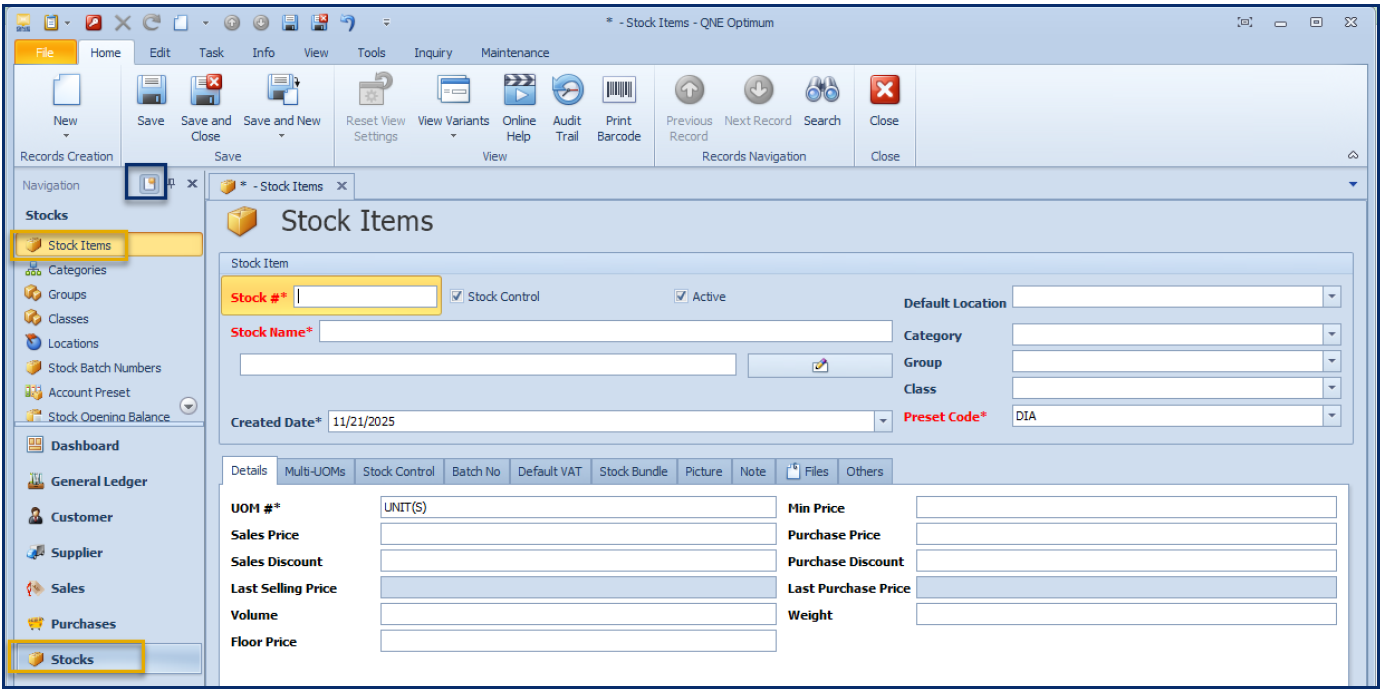
On the navigation pane Go to Stocks → Stock Items.
Note: If the Mini New icon (the one inside the blue box) is highlighted, clicking Stock Item will immediately redirect you to the New Stock Item form. If the Mini New icon is not highlighted, you will be directed to the Stock Item List instead.
If you are on the Stock Item List, click New to create a new item.
Step 2: Enter Item Information and Save the Item
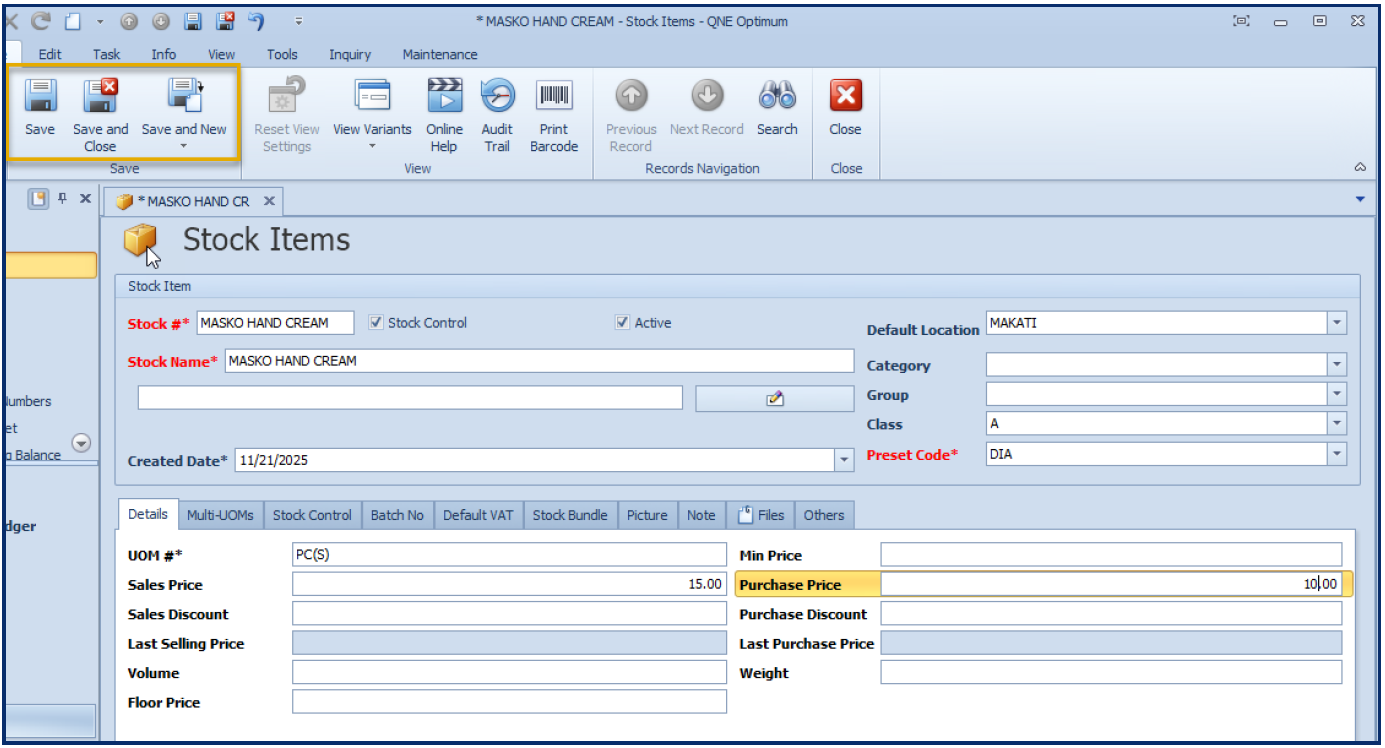
Supply the following fields:
Stock # (Required) - Enter a unique code, e.g., MASKO001.
Active (Check Box) - Tick this to make the item available for use in transactions.
Stock Control (Check Box) -
Ticked: System tracks quantity on hand and records stock movements for purchases, sales, and adjustments.
Not ticked: Item becomes non-inventoriable (ideal for services or non-stock items).Stock Name (Required) - The name or label of the item (e.g., "MASKO HAND CREAM").
Alternate Name (Field below Stock Name) - An optional field for entering another recognizable name or nickname for the item.
Further Description (Button) - Opens a section or pop-up to enter extended item details or specifications.
Created Date - Auto-generated but can be manually edited
Default Location - Select the warehouse or location where the item is normally stored.
Category - Used to classify the item under a predefined stock category (e.g., "Electronics").
Group - A grouping field for further classification or reporting purposes.
Class - Another classification field often used for internal tracking or categorization.
Account Preset (Required) - Links the item to default accounting accounts for transactions (e.g., Default sales and purchase accounts).
UOM # (Required) - Unit of Measurement (e.g., Piece, Bottle, Hours, Service).
Sales Price - The default selling price.
Sales Discount - Enter standard discount percentage or amount (optional).
Last Selling Price - Auto-updates based on the last transaction (view only).
Volume - Enter item volume if relevant (optional).
Floor Price - Minimum allowed selling price.
Min Price - Lowest selling price
Purchase Price - Standard acquisition cost.
Purchase Discount - Enter standard purchase discount (optional).
Last Purchase Price - Auto-updated based on last purchase transaction (view only).
Weight - Enter item weight if necessary for logistics or costing (optional).
Save the Stock Item;
Review all the information entered.
Click Save/Save and Close/Save and New.
Application:
You can use this feature to:
Add new physical products or new services your business will offer.
Maintain consistent item naming and pricing across all transactions.
Improve reporting accuracy by grouping items into categories and brands.
Prepare items ahead of seasonal promotions or new service launches.
Ensure sales and purchasing teams select the correct, standardized item every time.

Was this article helpful?
That’s Great!
Thank you for your feedback
Sorry! We couldn't be helpful
Thank you for your feedback
Feedback sent
We appreciate your effort and will try to fix the article