How to Create New Customer
Overview:
Creating a new customer profile in N3 AI Accounting allows businesses to manage transactions, monitor receivables, and generate accurate reports linked to individual clients. By entering complete and correct customer information from the start, you ensure efficient billing, smoother reporting, and better customer relationship management.
Scenario:
Your company has just welcomed a new client and is preparing to issue their first sales invoice. To ensure accurate tracking of their transaction history, credit terms, and contact information, you need to create a customer record in QNE before proceeding with any sales-related activities.
Procedure:
Step 1: Access the Customer Module
Go to Accounts Receivable > Customer.
Click Add to open the new customer entry form.
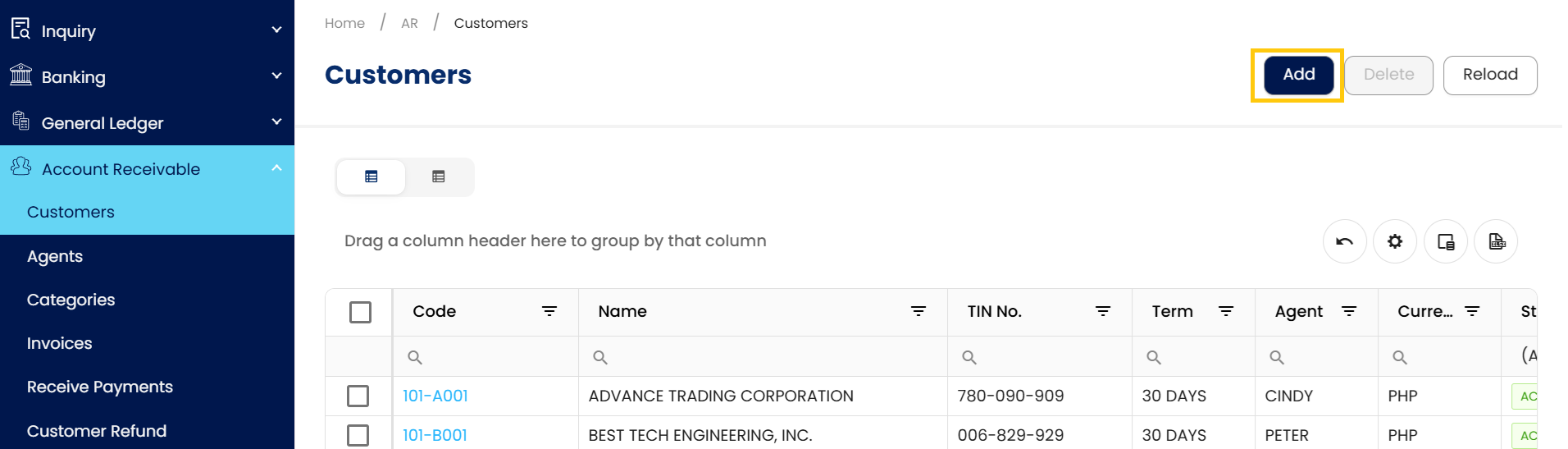
Step 2: Complete the Customer Details
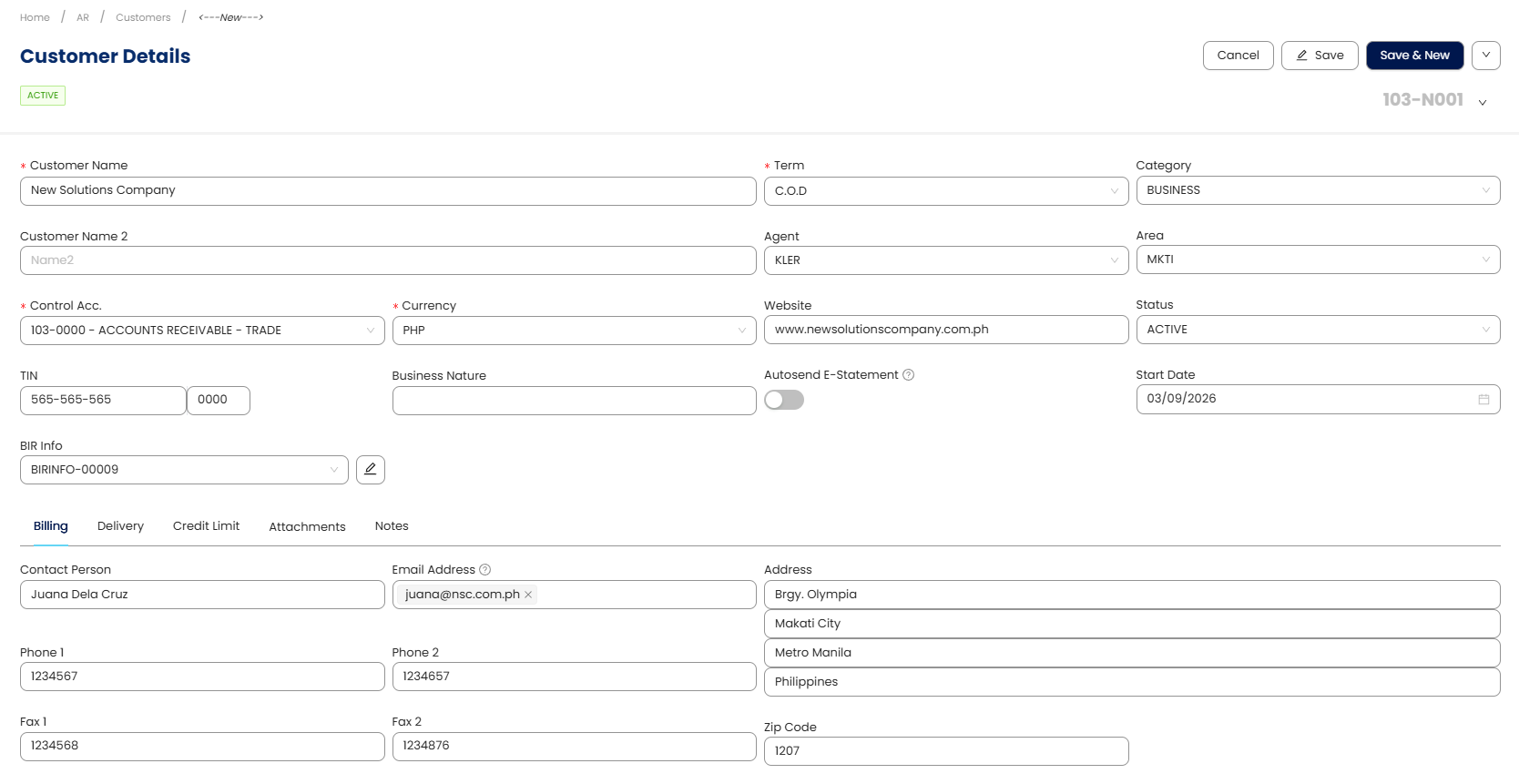
Fill in the relevant customer information to ensure the system can process transactions
accurately and generate complete reports:
Essential Fields:
Customer Name – Official registered name of the client.
Term - Set appropriate credit terms
Control Account - Select the correct customer posting account.
Currency - Choose the default currency for billing (e.g., PHP, USD).
Additional Fields:
TIN – Tax Identification Number (required for VAT and official receipts).
Business Nature - Industry or sector the client belongs to.
BIR Info - Tax-related classification
Customer Name 2 - Assign an internal contact for this account.
Agent - Assign an internal contact for this account.
Website - Client’s web presence, if available.
Category - Optional grouping for customer segmentation.
Agent - Assign an internal contact for this account.
Phone 1 - Primary contact number.
Phone 2 - Secondary contact number.
Fax 1 - Primary fax number
Fax 2 - Secondary fax number.
Email Address – Useful for sending SOA, invoices, or payment reminders.
Address – Billing or shipping address (as applicable).
Zip Code -For geographic sorting
Step 3: Save the Customer Record:
Once all fields are filled out and verified:
Click Save to complete the entry.
Or choose Save & New if entering multiple customers consecutively.
Application:
Let’s say your company, ABC Distributors, has a new client—GreenFields Trading. They are a valued customer who will receive monthly invoices with 30-day payment terms.
Here’s how you'd set them up in QNE:
Customer Code: 103-G001
Customer Name: GreenFields Trading
Customer Name 2: Handled by John Dela Cruz
TIN: Enter their provided tax ID
Currency: Set to PHP
Credit Terms: Net 30 Days with a credit limit of ₱100,000
Phone 1 / Phone 2: Add available contact numbers
Fax 1 / Fax 2: Include if applicable
Address / Email: Input for document delivery and follow-ups
With this setup, QNE will automatically apply these default values when creating transactions, ensuring speed, accuracy, and consistency across your billing and reporting processes.
System Scope: QNE AI Cloud Accounting / N3 AI Accounting
Was this article helpful?
That’s Great!
Thank you for your feedback
Sorry! We couldn't be helpful
Thank you for your feedback
Feedback sent
We appreciate your effort and will try to fix the article