
Overview:
Multi-Factor Authentication (MFA) enhances account security by requiring a verification code in addition to your password. This prevents unauthorized access even if your login credentials are compromised. QNE AI Cloud Accounting supports both authenticator app–based codes and email verification to give users flexibility and added protection.
Scenario:
You are granting system access to new team members and want to ensure that only authorized users can log in to your QNE company. Since your company handles sensitive financial data, you decide to activate MFA for your own account and enforce it for the entire organization. You also want to guide employees on how to log in using MFA, re-enable it if they change devices, and use email verification as a backup method.
Solution:
1. Enable Multi-Factor Authentication (MFA)
Go to Account Settings.
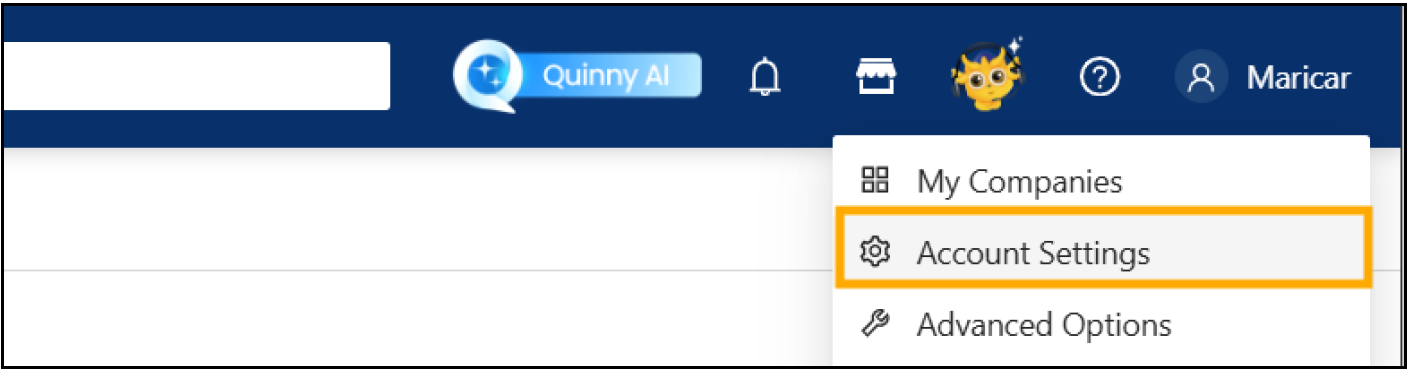
Open Security Settings.
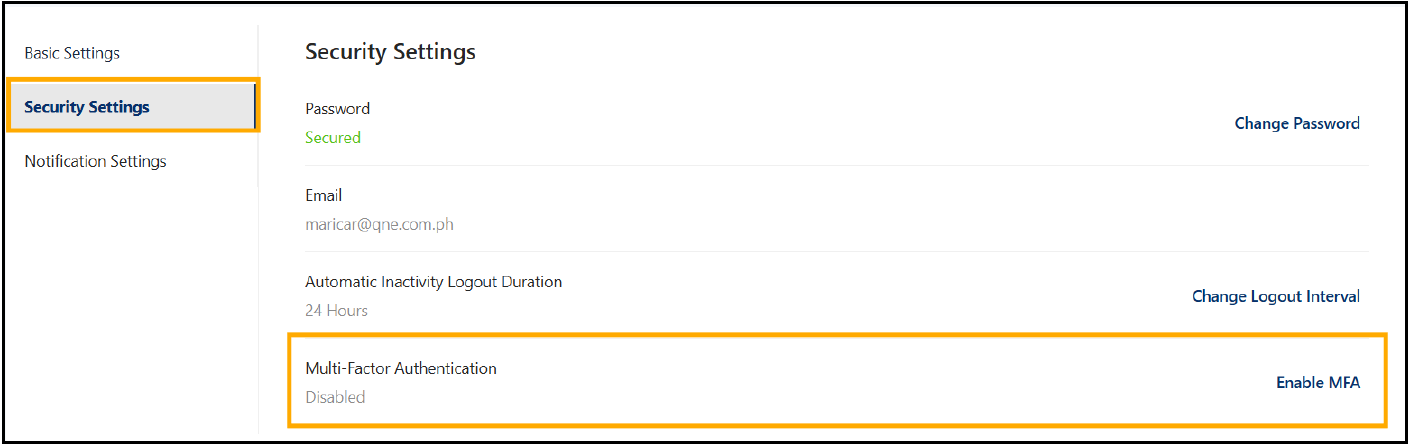
Under Multi-Factor Authentication, click Enable MFA. This will open a guide on how to enable the Authenticator App. Follow the instructions and enter the 6-digit code from the authenticator.
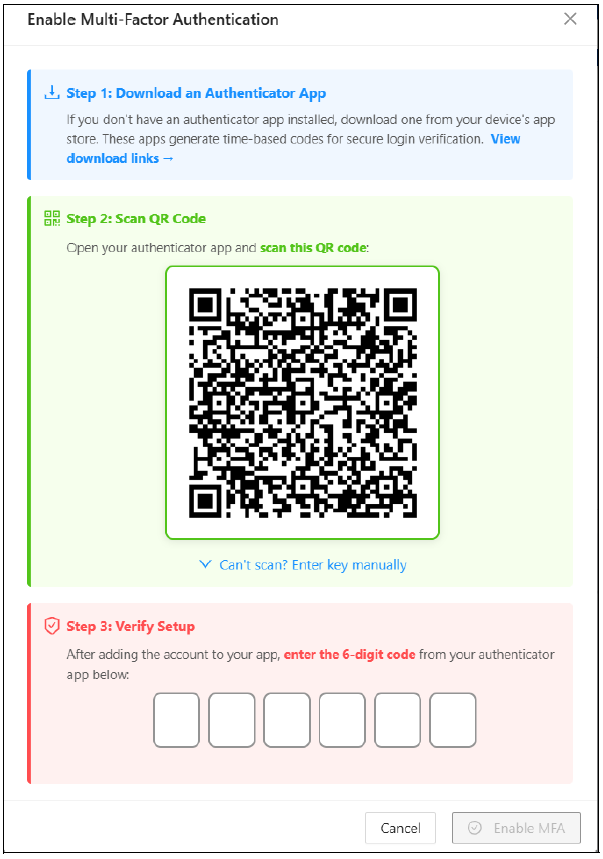
Sample Authenticator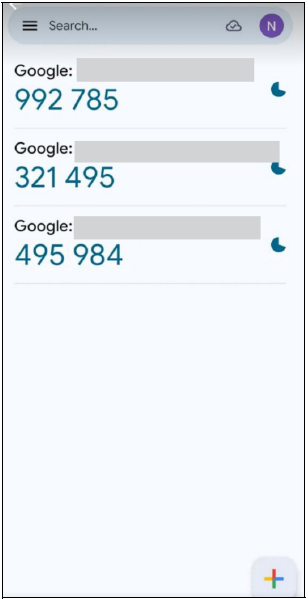
Click Enable MFA to finalize activation.
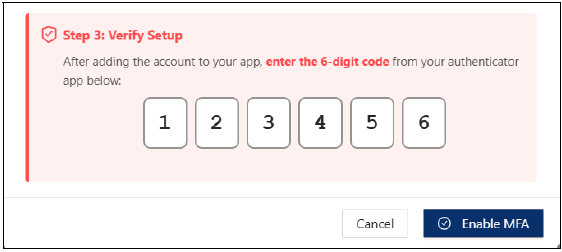
Log out and log back in to complete setup.
2. Log In Using MFA
Enter your email and password on the login screen.
Enter the verification code displayed in your authenticator app. Click Verify.
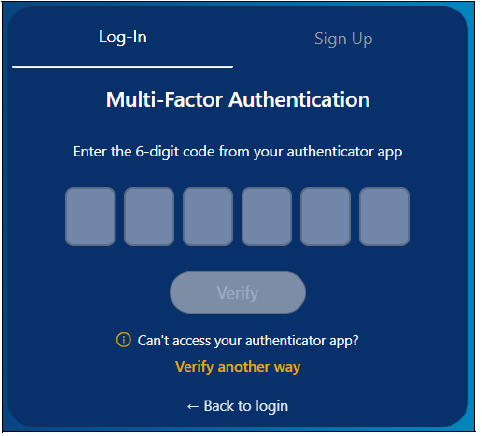
Use Email Verification as an Alternative
On the MFA login screen, click Verify another way instead.
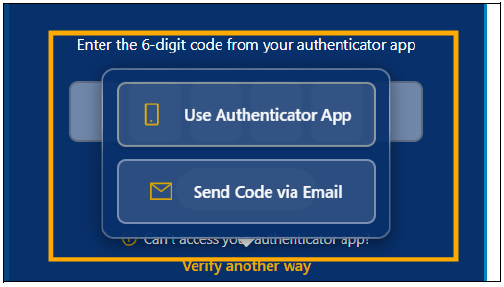
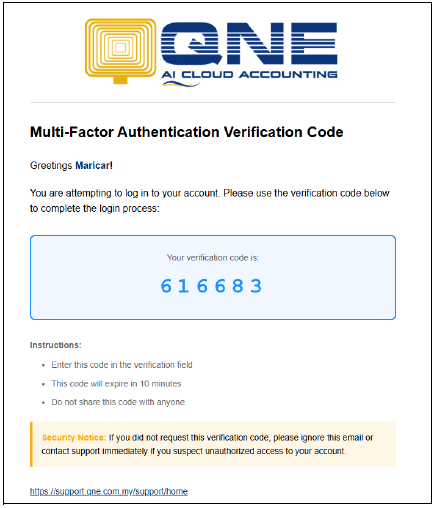
Click Send Code via Email and click Send Code.
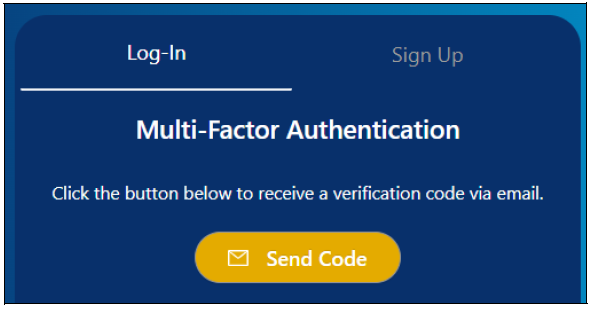
Check your inbox for the verification code.
3. Disable Multi-Factor Authentication
Go to Account Settings > Security Settings.
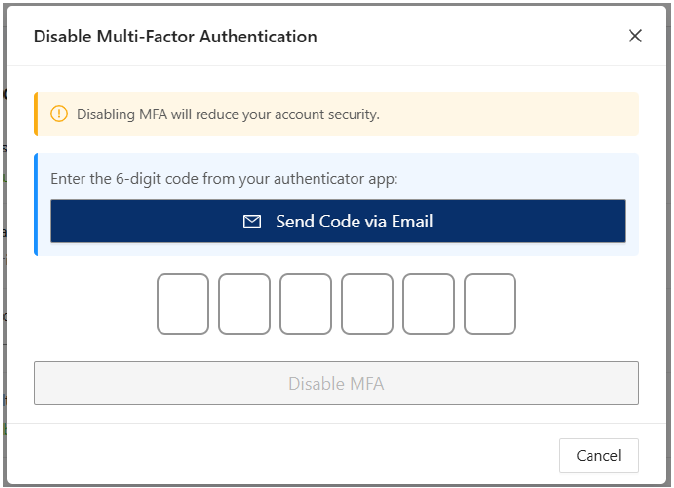
Click Disable MFA.
Enter the generated verification code. Click Disable MFA to confirm.
Note: Enabling or disabling Multi-Factor Authentication triggers a notification email to the user. This security feature is only available from the Essential Plan up to higher-tier plans.
Application:
Here are practical situations where MFA helps safeguard your system:
Enhanced Account Security
Your accounting team logs in remotely. Enabling MFA ensures that even if a password is leaked or reused, unauthorized access is blocked.Device Replacement or Upgrade
An employee changes mobile phones. MFA can be easily disabled and re-enabled to pair the new device with the user's login credentials.Compliance & Audit Requirements
Your company is preparing for an audit and must demonstrate strong access control practices. Enforcing MFA shows that adequate security measures are in place.Email Verification for Non-Technical Users
Some users prefer not to use an authenticator app. Email verification provides a simpler alternative without compromising security.

Was this article helpful?
That’s Great!
Thank you for your feedback
Sorry! We couldn't be helpful
Thank you for your feedback
Feedback sent
We appreciate your effort and will try to fix the article