Overview:
A quotation in N3 AI Accounting is a formal proposal sent to potential customers, detailing the products or services offered, quantities, prices, and payment terms. Creating a quotation accurately ensures professional communication, reduces errors, and facilitates the transition from quote to sales order. This guide focuses on efficiently creating a quotation and applying pricing, discounts, and taxes correctly.
Scenario:
You have received a request from a client for a quotation on multiple products or services. The client expects a clear, professional document that includes pricing, applicable discounts, and delivery terms. Using N3 AI, you can create and send this quotation digitally, ensuring consistency and accuracy while saving time.
Procedure:
Step 1: Start a New Quotation
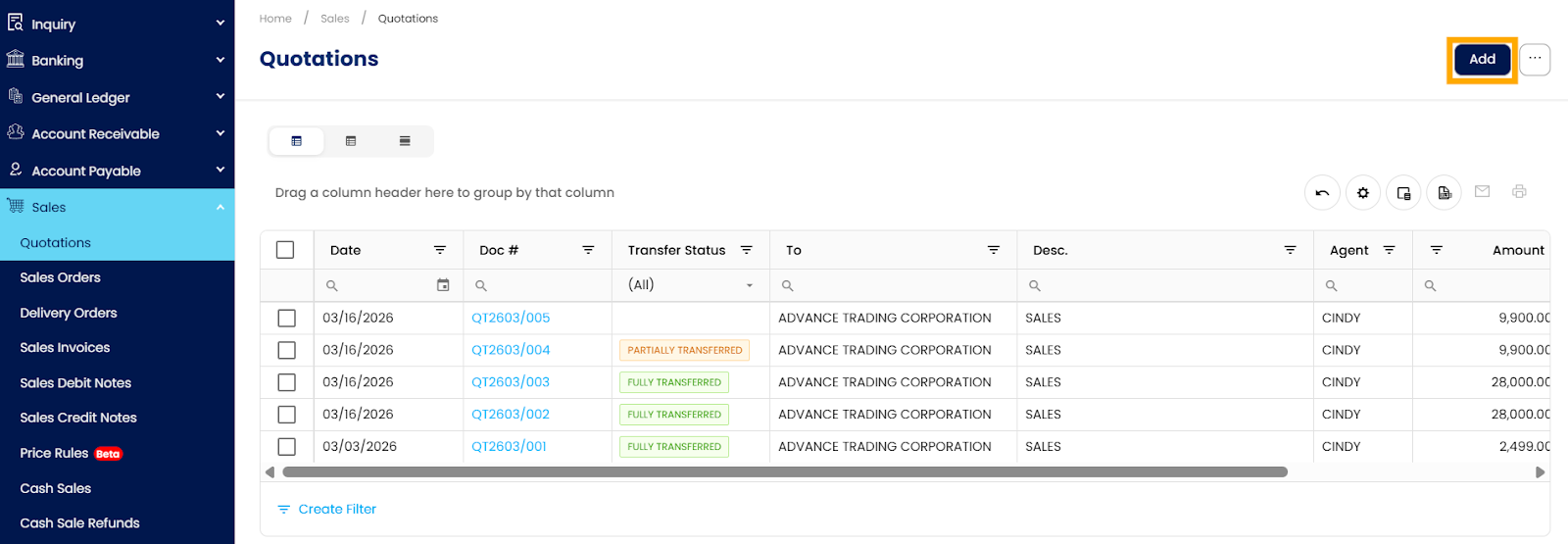
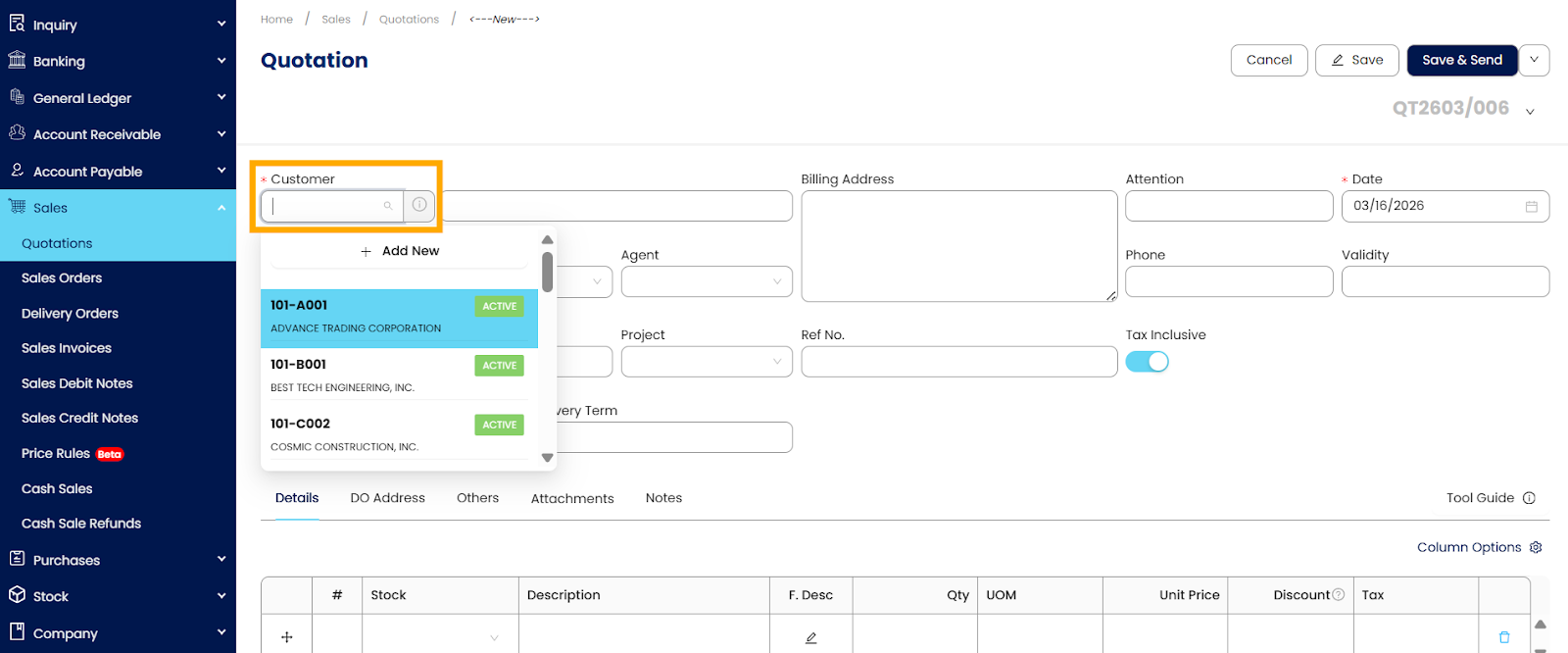
Navigate to the Quotations module and select Add.
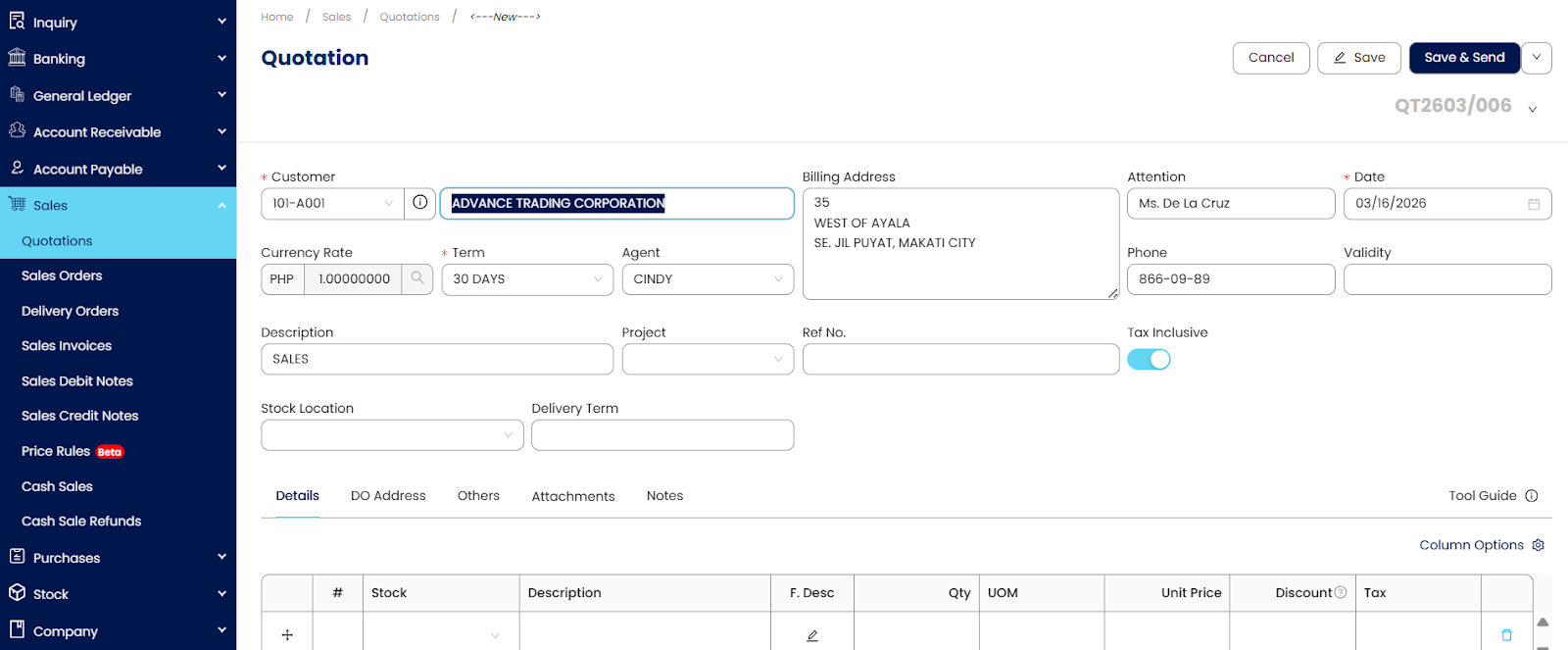
Choose the Customer from the dropdown list.
For new clients, use Add New Customer to enter their details.
Step 2: Add Items to the Quotation
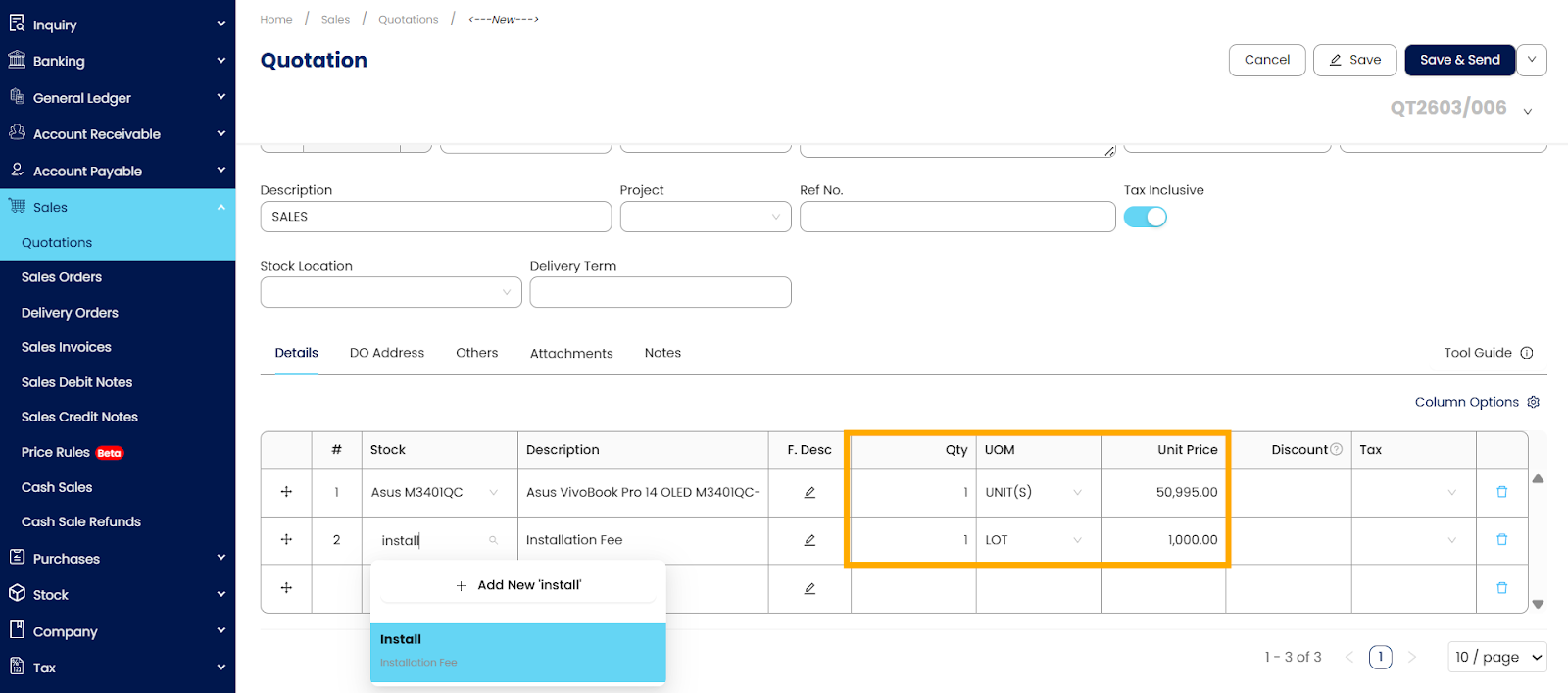
Click Add Item to include products or services.
Select items from your inventory or service list.
Specify the Quantity, Unit Price, and any item-specific Discounts.
Repeat until all requested items are included.
Step 3: Configure Taxes
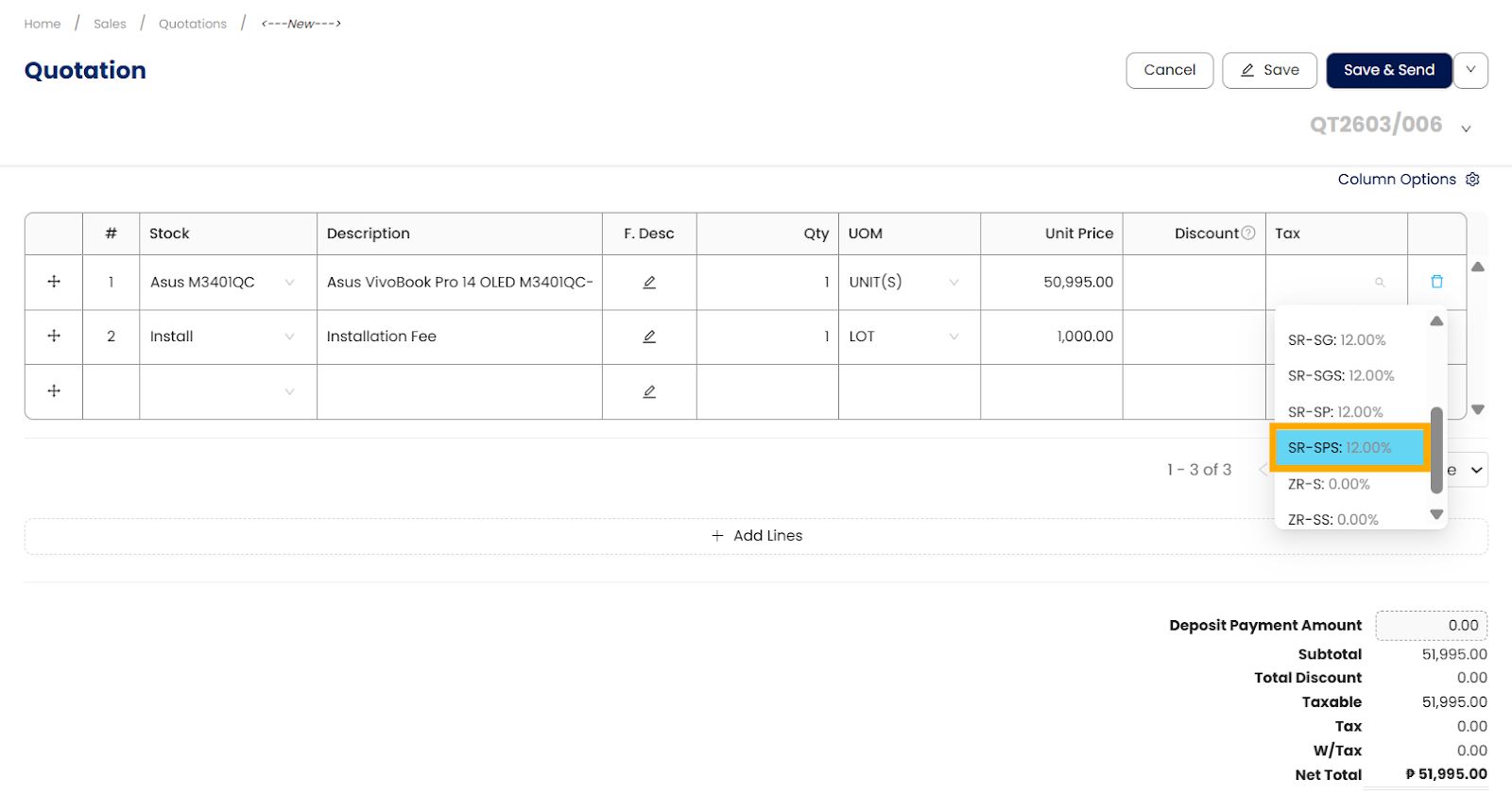
Verify and apply the correct Tax Settings (e.g., VAT or GST) for each item.
Confirm that the totals are calculated correctly and reflect all adjustments.
Step 4: Add Notes and Terms
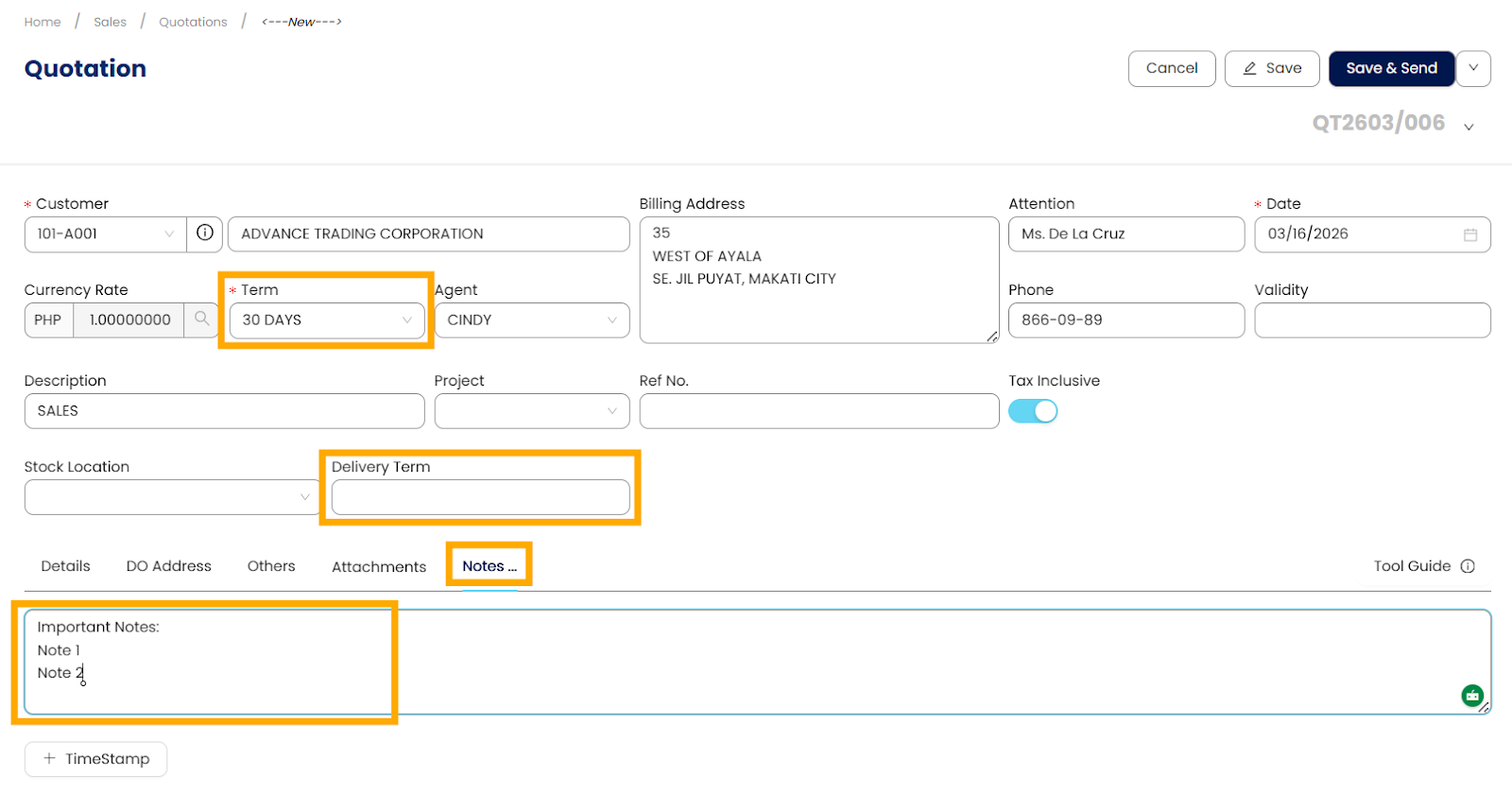
1. Include payment terms, delivery instructions, or special conditions in the Notes section.
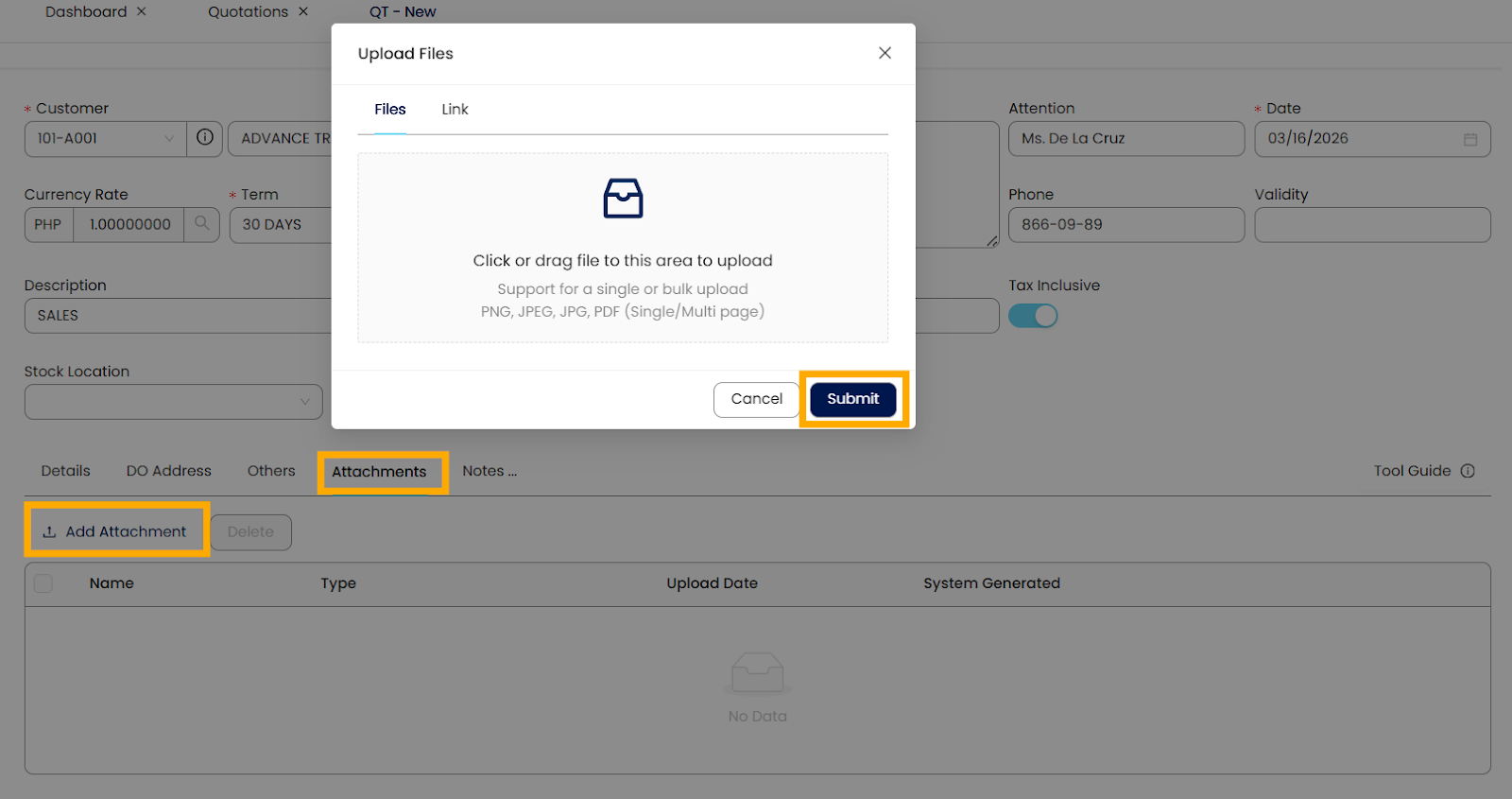
2. Optionally, attach supporting files or images to provide additional context for the client.
Step 5: Review and Finalize
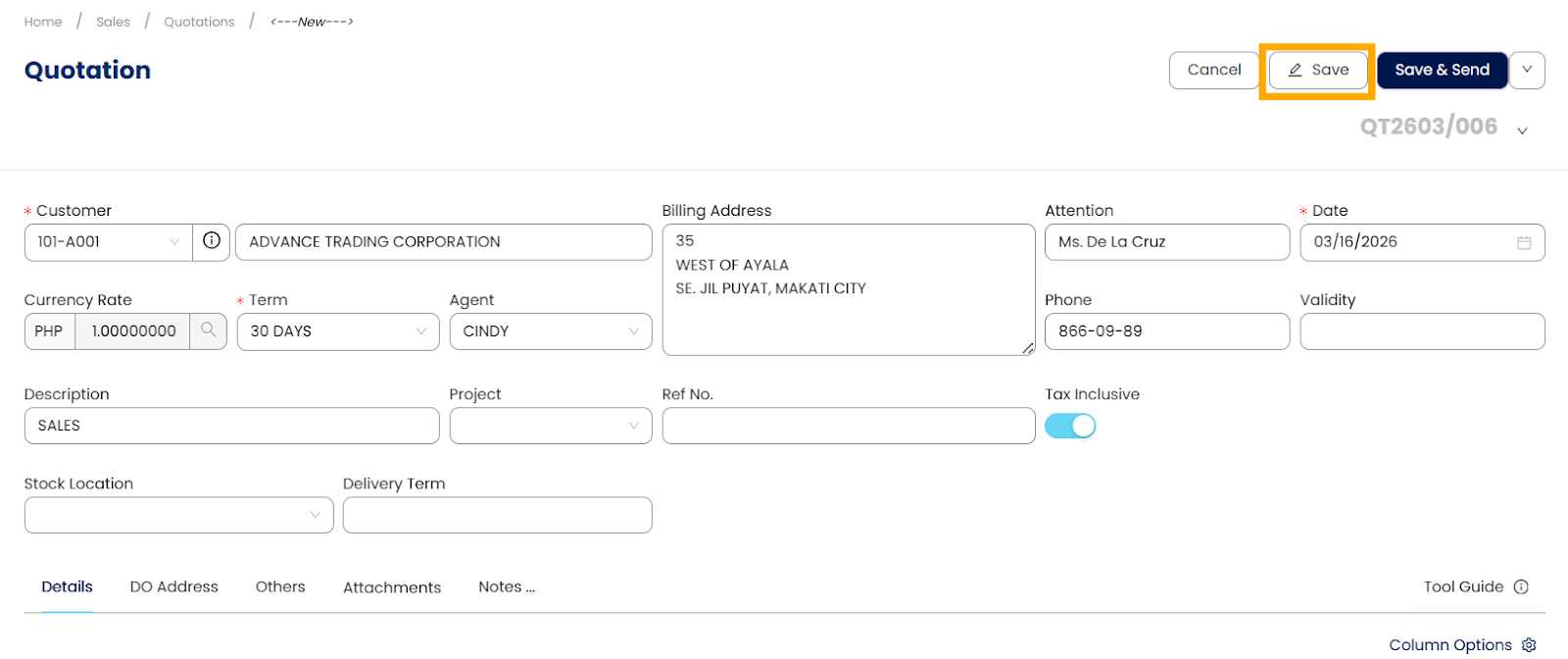
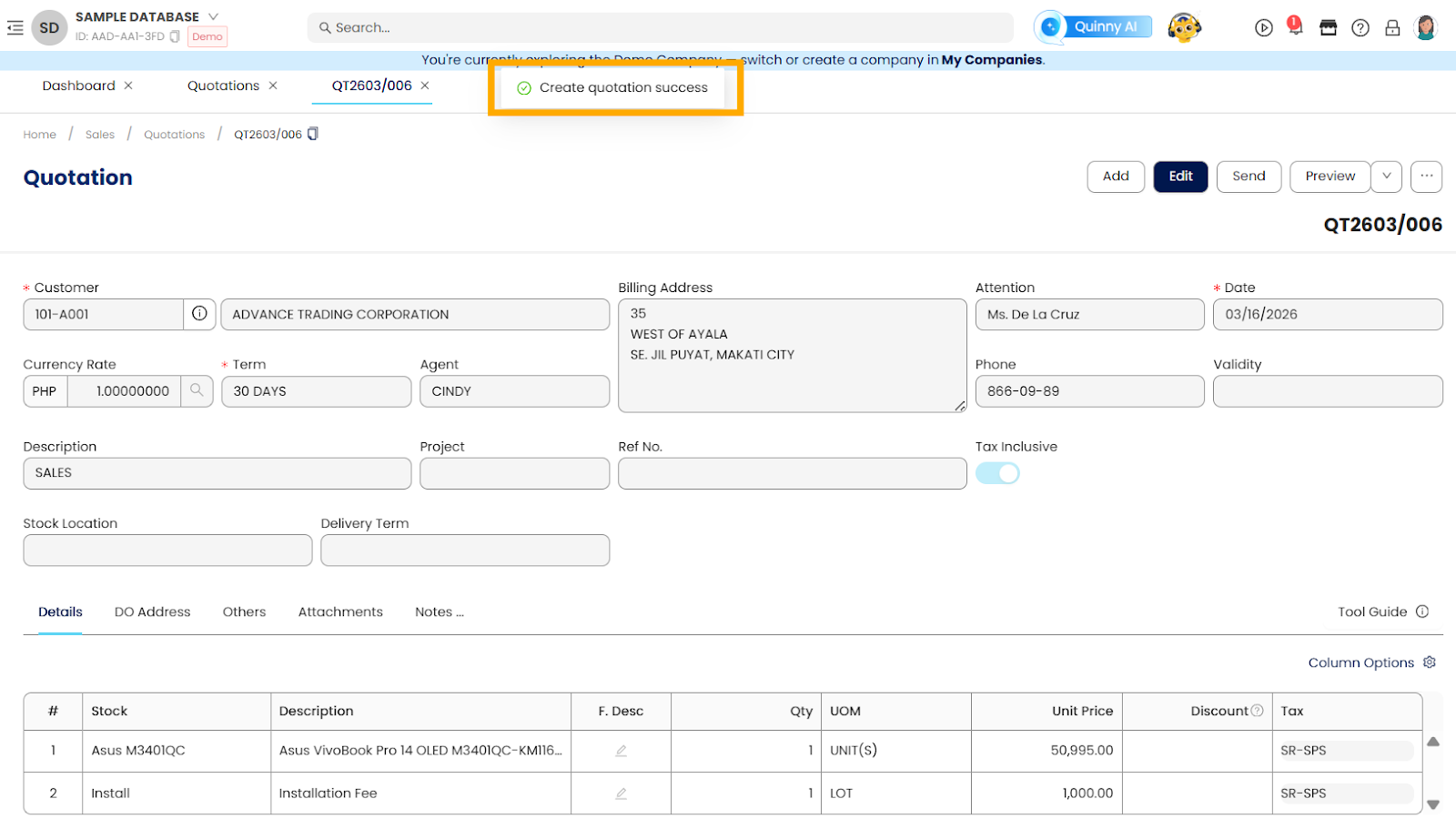
Review each line item for accuracy in quantity, pricing, discounts, and taxes.
Ensure customer information is correct.
Click Save to store the quotation in N3 AI.
Step 6: Send the Quotation to the Customer
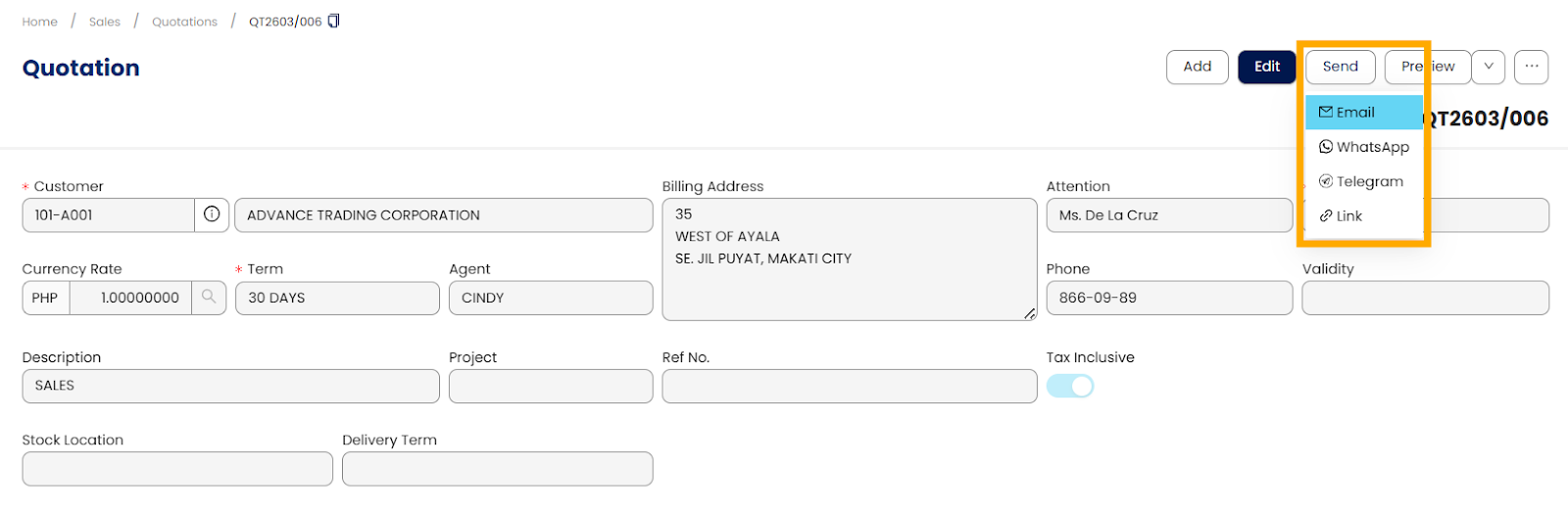
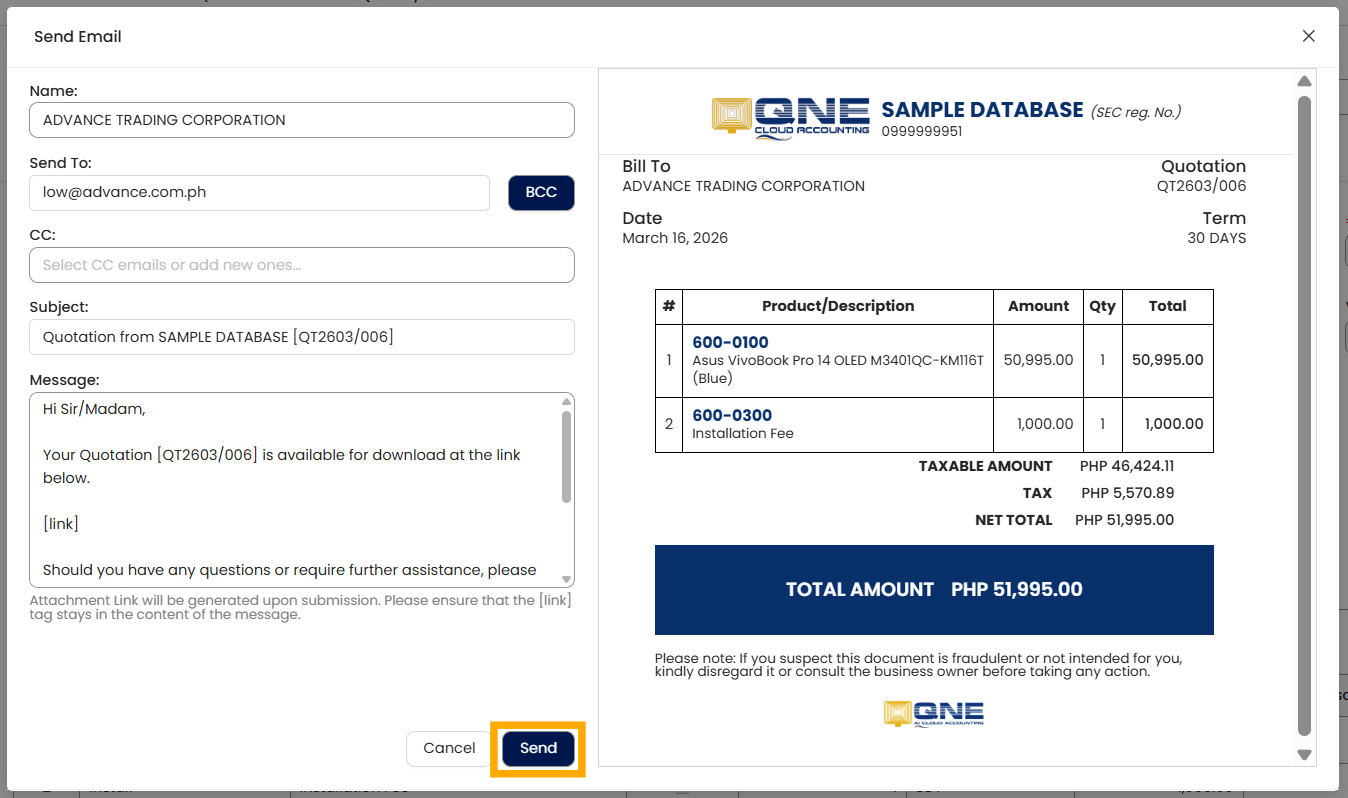
Open the saved quotation and click Send via Email.
Customize the email message if necessary.
Send the quotation and track its status within N3 AI for follow-up.
Procedures:
Editing Quotation Details
Navigate to Sales > Quotations.
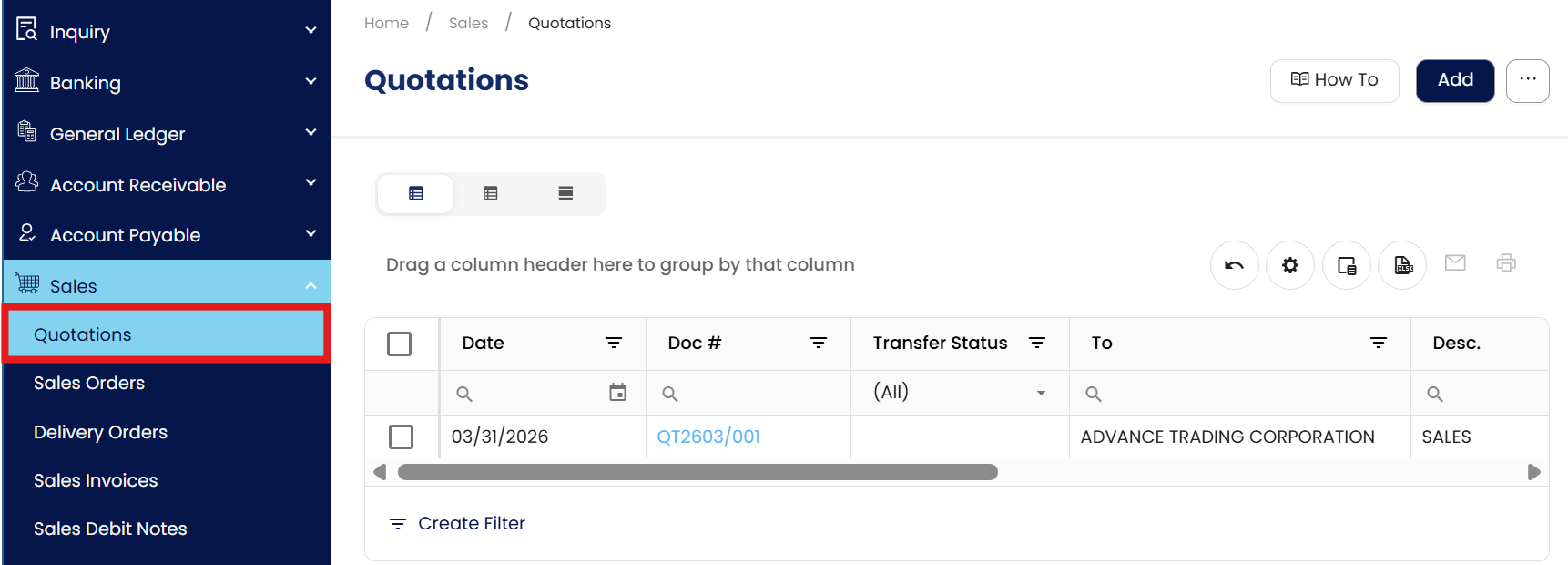
From the list, locate the Quotation you wish to modify.
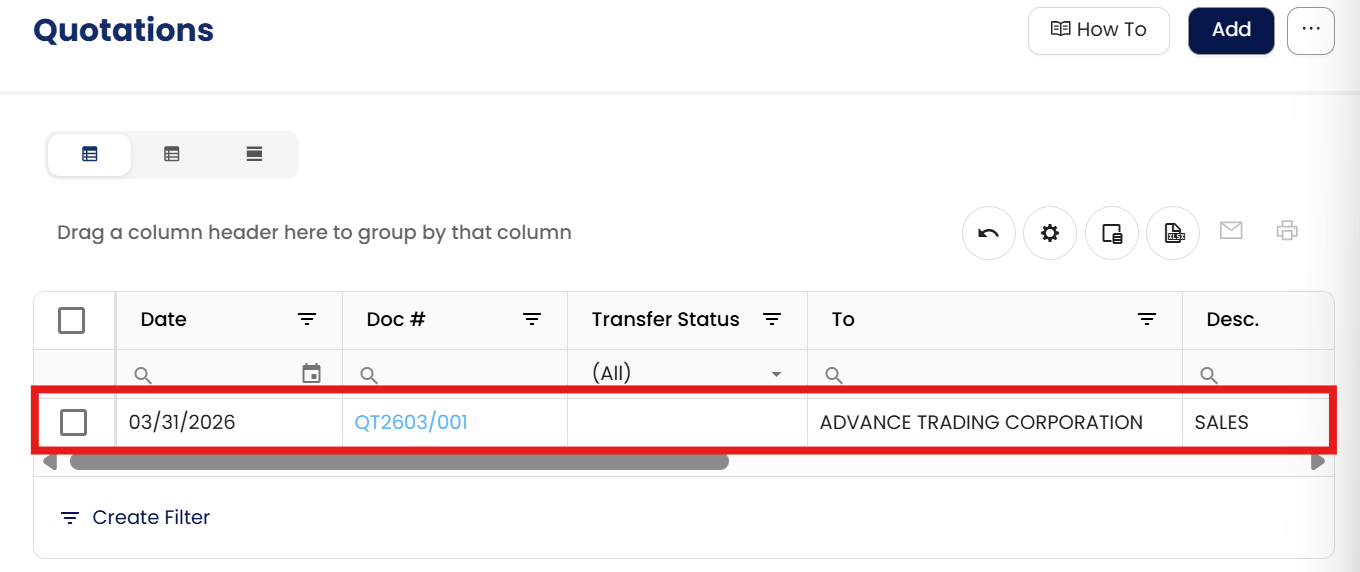
Open by clicking the blue highlight. Then Click the Edit icon.

Apply the necessary changes to the items, quantities, or terms. Then Save.

Deleting a Quotation
Navigate to Sales > Quotations.
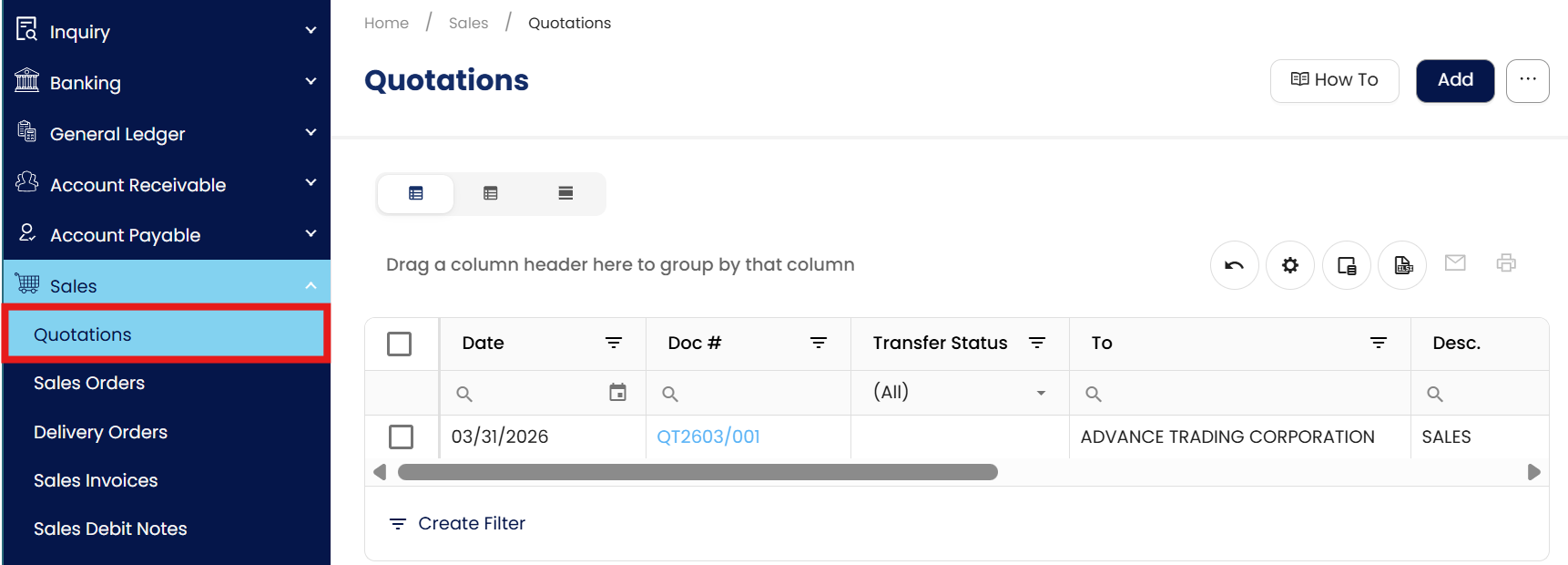
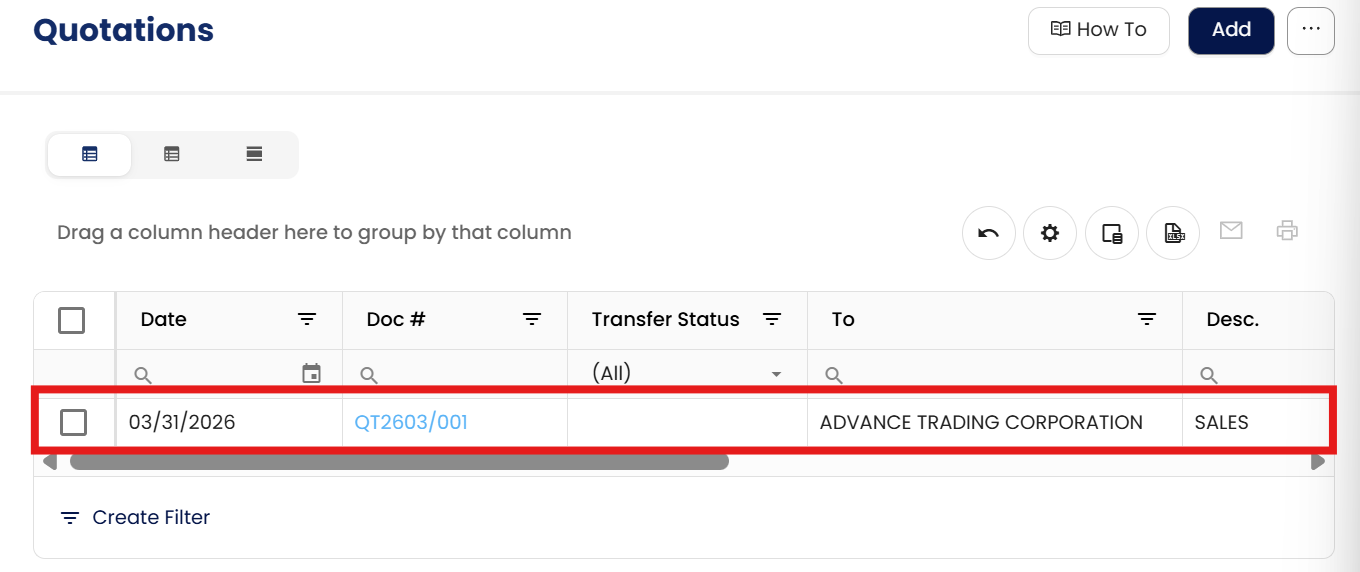
Find the specific Quotation in the listing.
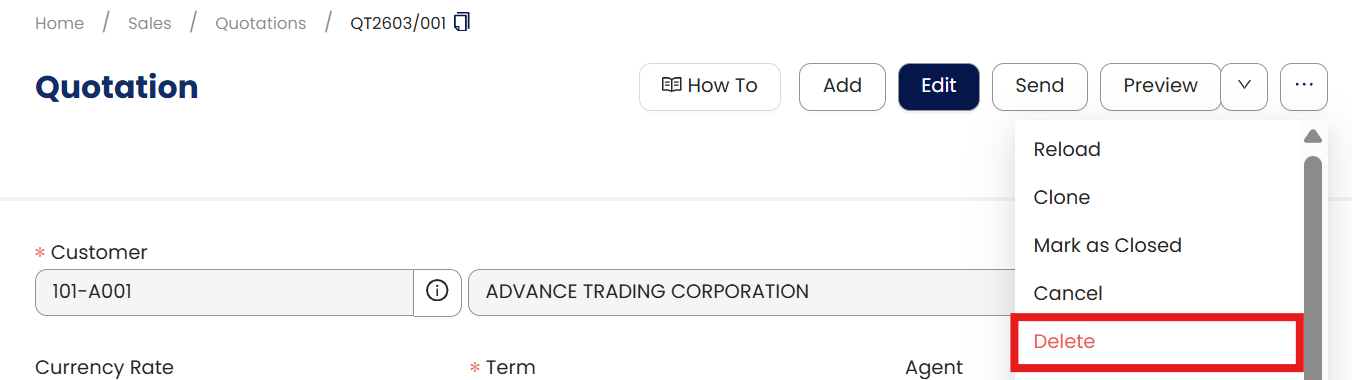
Click the Delete icon from the drop-down button.
A confirmation prompt will appear; click Yes to confirm.
Application:
Sales Efficiency: Quickly generate professional quotations to respond to customer inquiries, increasing the chances of converting leads into sales.
Accuracy & Compliance: Ensure correct pricing, discounts, and tax calculations are applied consistently across all quotations.
Client Communication: Maintain professionalism by providing clear terms, notes, and attachments, reducing misunderstandings and improving client trust.
Integration with Sales Orders: Easily convert approved quotations into sales orders, streamlining the order fulfillment process and minimizing manual data entry.
Important Note:
Editing and Deleting Transactions: According to regulatory guidelines, modifications or deletions of recorded transactions in the system may be strictly prohibited once Computerized Accounting System (CAS) approved. It's vital to adhere to your company's internal policy regarding these functionalities. It is generally advisable to disable or limit the ability to edit/delete to maintain compliance with regulations.
System Scope: QNE AI Cloud Accounting / N3 AI Accounting
Was this article helpful?
That’s Great!
Thank you for your feedback
Sorry! We couldn't be helpful
Thank you for your feedback
Feedback sent
We appreciate your effort and will try to fix the article