Overview:
The Price Rules feature allows users to define item-specific selling prices per customer, ensuring more accurate and customized pricing across sales transactions. When enabled, the system automatically determines the correct selling price based on the configured Selling Price Priority.
This feature is ideal for businesses that offer special pricing agreements, volume-based prices, or customer-specific rates, while still maintaining control over how prices are applied during sales.
Scenario:
A sales manager negotiates special pricing for key customers who purchase specific items in bulk. Instead of manually adjusting prices for every transaction, the accounting team sets up Price Rules so that once the customer meets the minimum quantity requirement, the correct custom price is automatically applied during sales transactions.
Procedure:
Enable Price Rules in Selling Price Priority
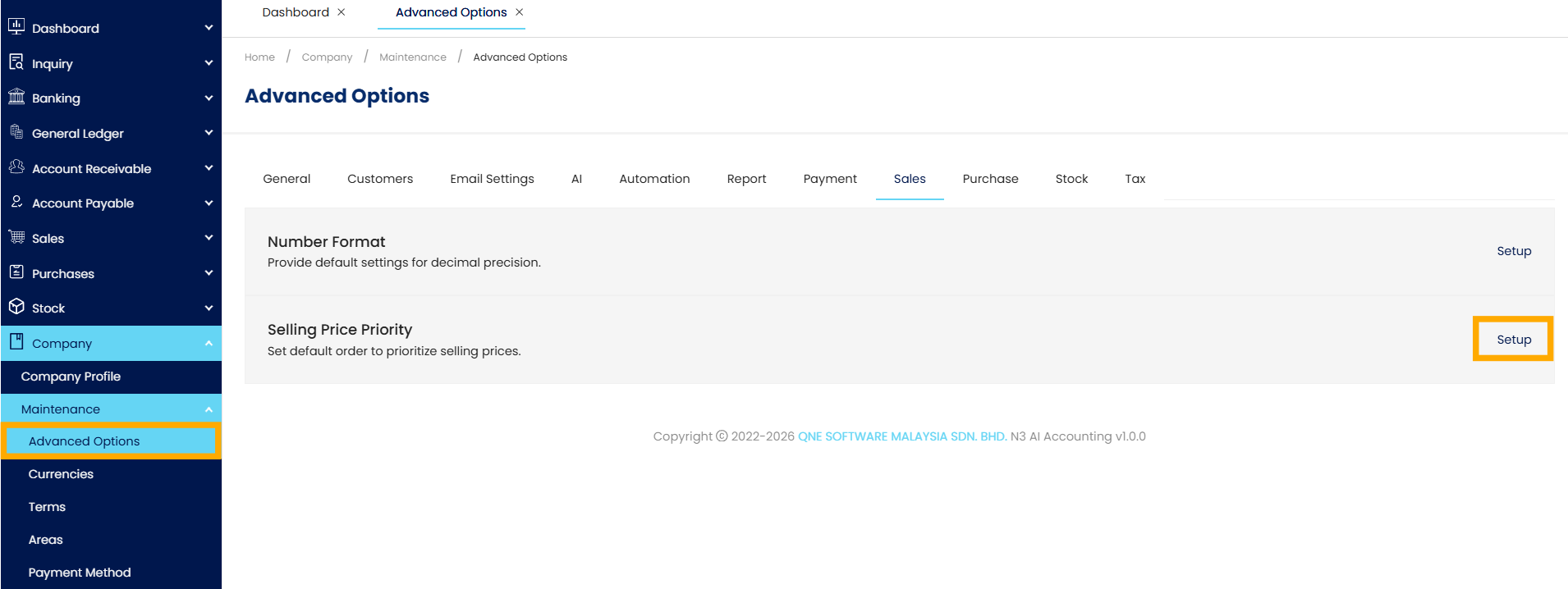
In the navigation pane, go to Company > Maintenance > Advanced Options > Sales > Selling Price Priority > Setup
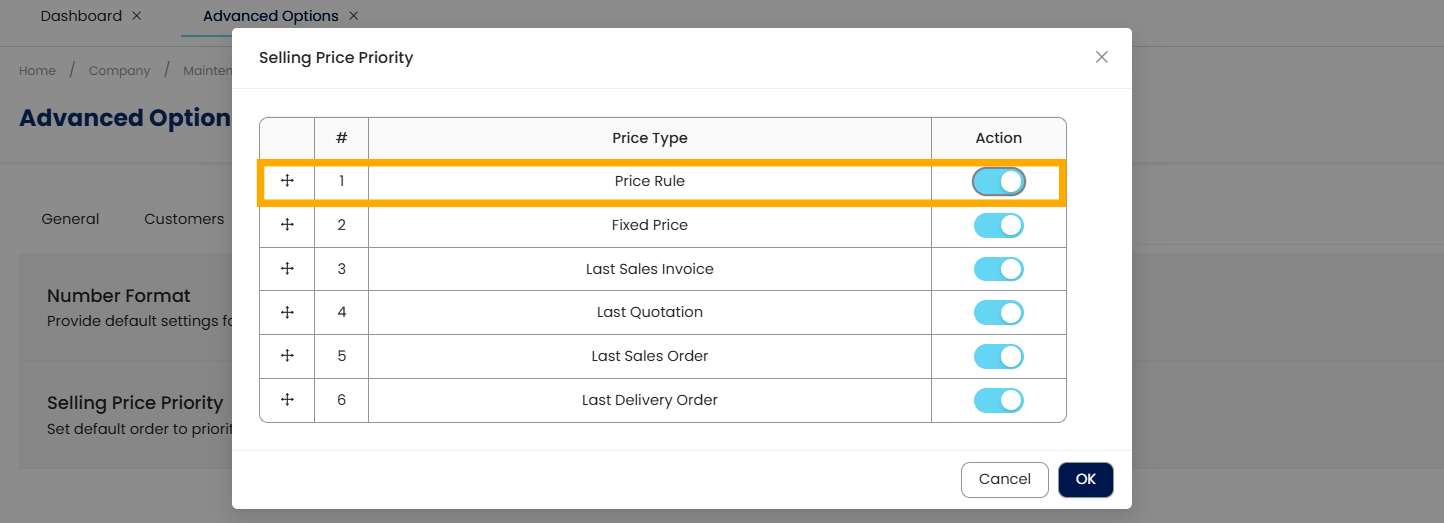
Enable Price Rule > Move it to the priority in the list > Click OK to save the changes.
Create or Edit a Price Rule
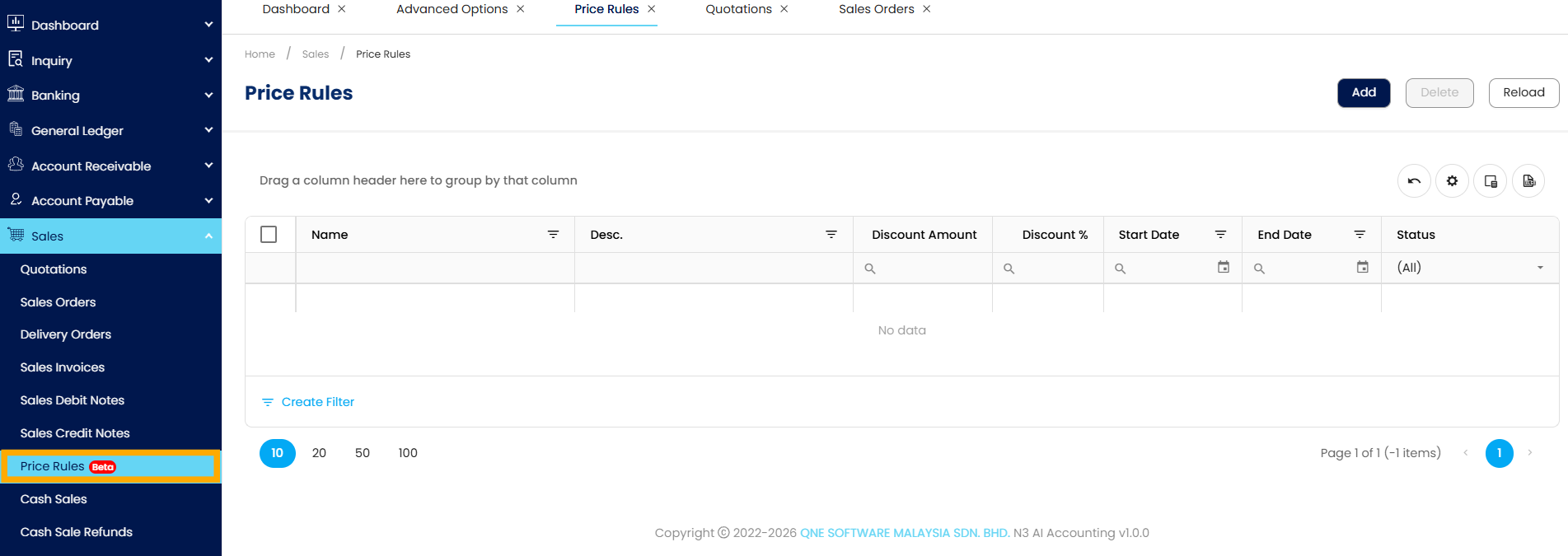
Navigate to Sales > Price Rules.
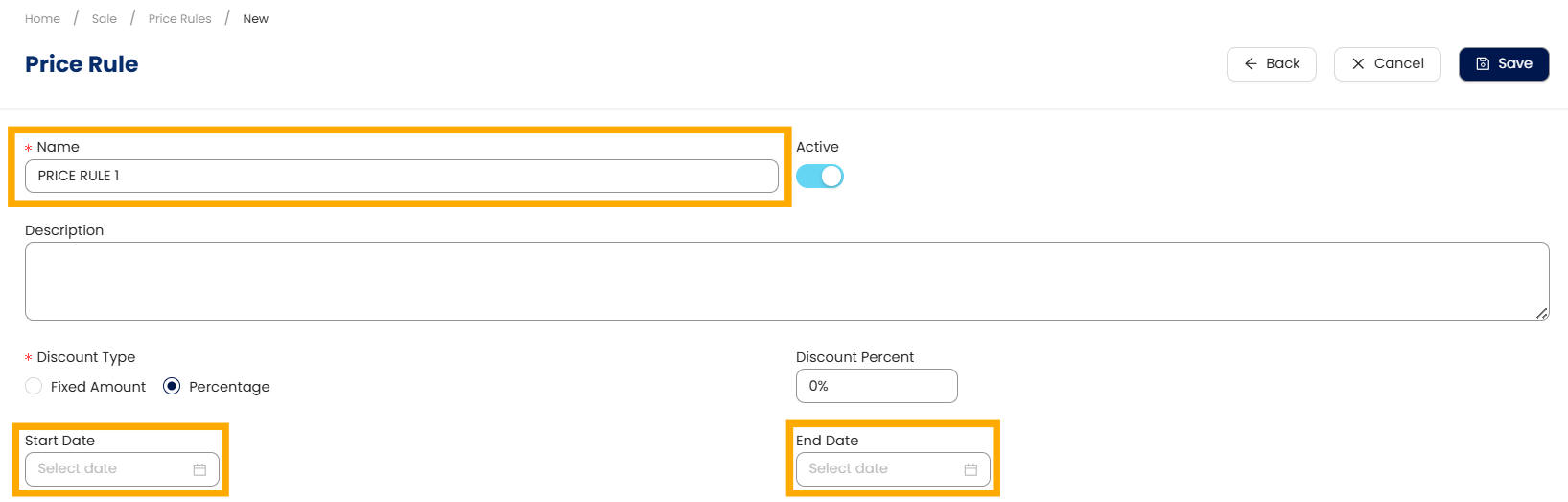
Enter the following:
Rule Name (required)
Description (optional)
Start Date / End Date (optional; leave blank for immediate activation)
Assign Customers
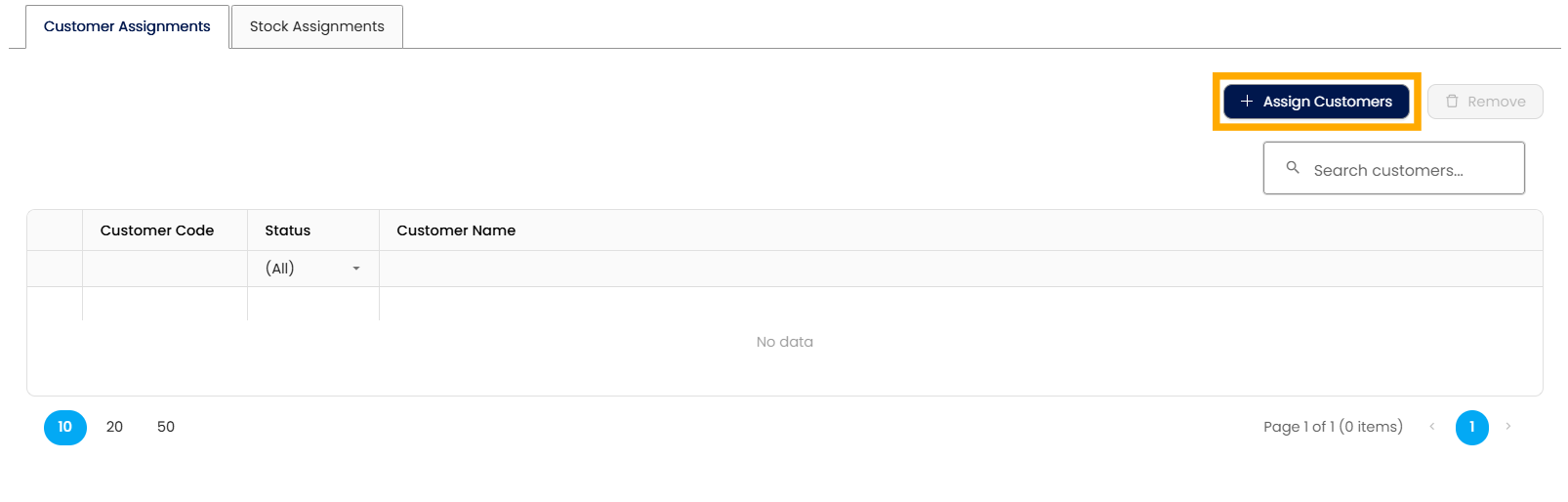
In the Customer Assignments tab, click Assign Customers.
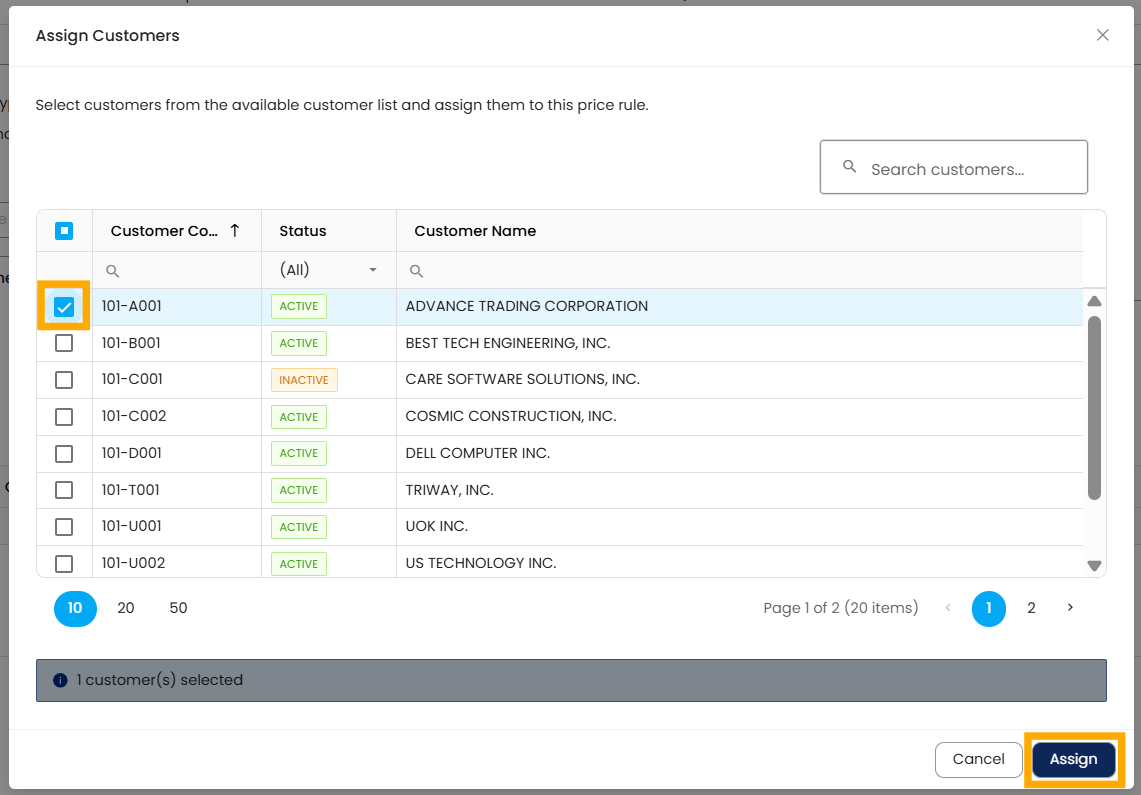
Select the customer/s for the price rule > Click Assign to save the changes.
Assign Stock Items
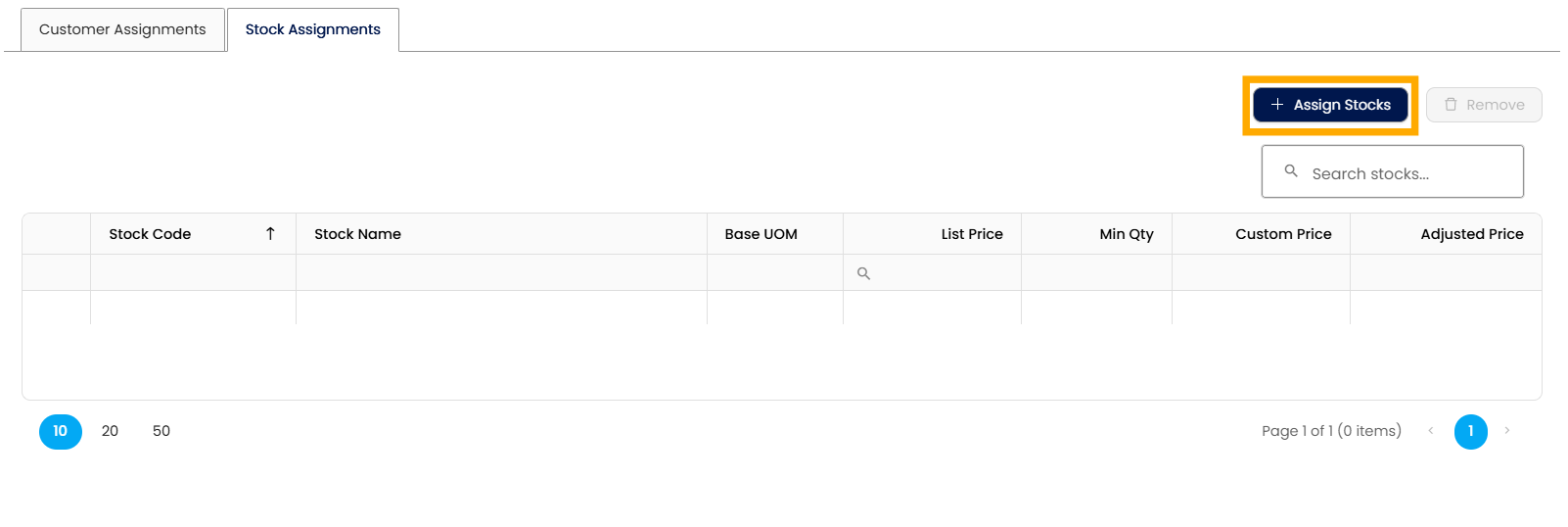
In the Stock Assignments tab, click Assign Stocks.
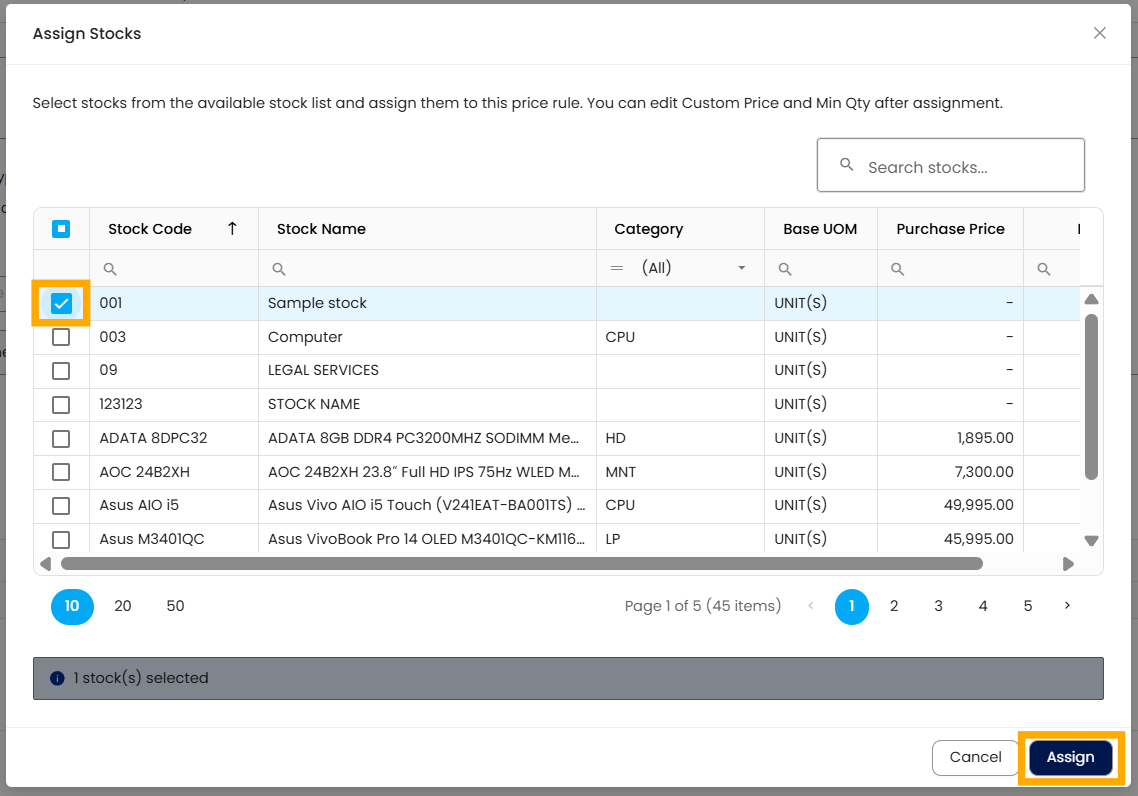
Select the stock item/s to which the price rule will apply > Click Assign to save the changes.
Configure Pricing Details
Enter the Minimum Quantity required for the custom price to take effect.
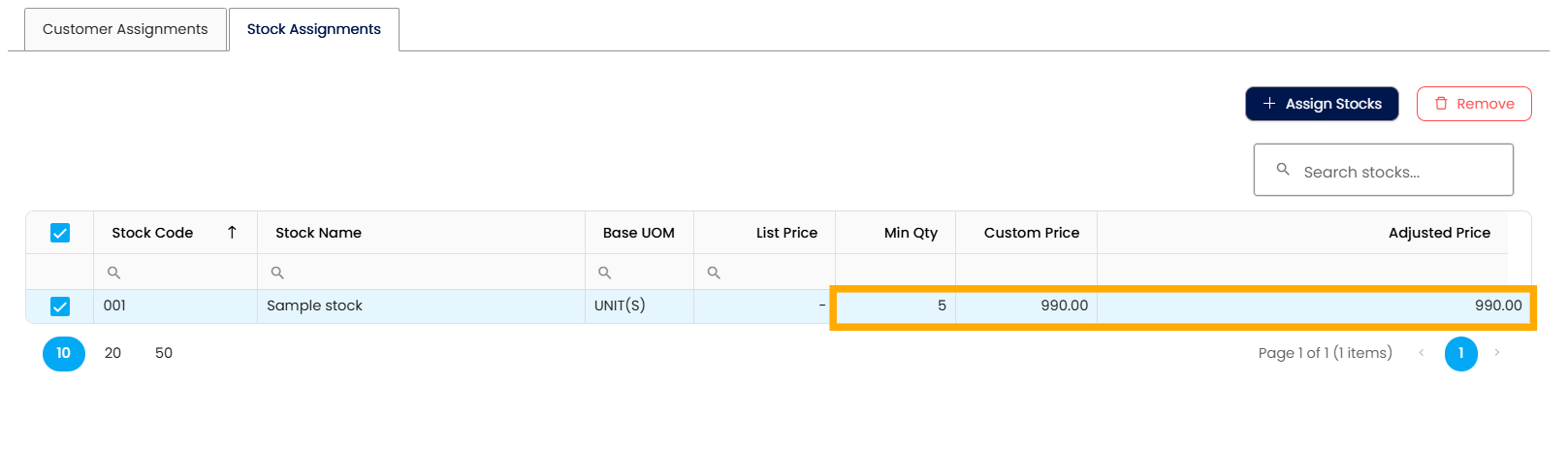
Enter the Custom Price. The system will automatically calculate the Adjusted Price based on the custom price.
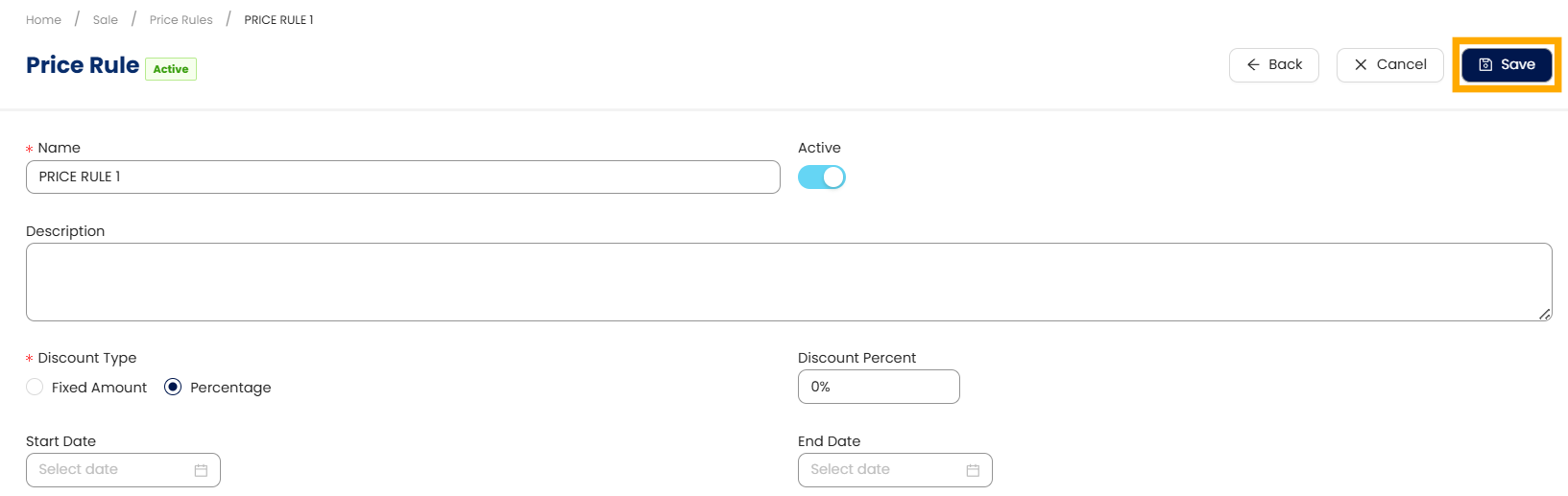
Click Save to finalize. The system will automatically apply the custom price during sales transactions when the minimum quantity condition is met, following the configured Selling Price Priority.
Notes:
Even when the Price Rules module is active, the system follows the configured Selling Price Priority hierarchy.
Pricing is always based on the item’s base unit of measurement and its list price.
The Price Rules feature is available only for Growth and Enterprise plans.
Application:
Customer-Specific Pricing: Apply negotiated prices for selected customers automatically.
Volume-Based Discounts: Offer special pricing once a purchase quantity threshold is reached.
Pricing Accuracy: Reduce manual price overrides during sales transactions.
Sales Efficiency: Speed up transaction processing with automatic price selection.
Pricing Control: Ensure pricing follows a defined hierarchy even when price rules are enabled.
System Scope: N3 AI Accounting (formerly QNE AI Cloud Accounting)
Was this article helpful?
That’s Great!
Thank you for your feedback
Sorry! We couldn't be helpful
Thank you for your feedback
Feedback sent
We appreciate your effort and will try to fix the article