Overview:
Setting up Payment Methods allows users to create company-specific payment options. This streamlines transactions, ensures consistent recording, and improves overall financial management.
Scenario:
A business wants to add a new payment method, such as a digital wallet or bank transfer, to ensure payments are processed and recorded accurately in the system.
Solution:
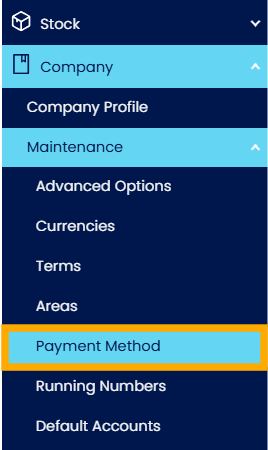
In the Navigation Pane, go to Company > Maintenance > Payment Method.
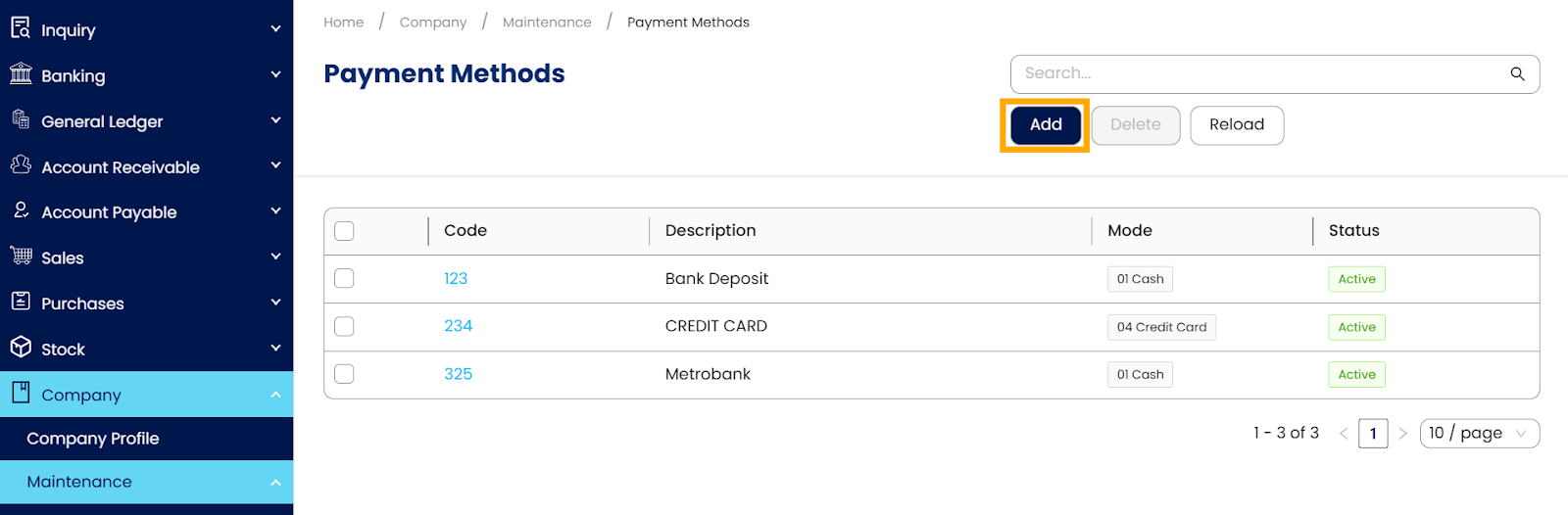
Click the 'Add' button to create a new option.
A pop-up window for Payment Method Details will appear, where the user will set up the details of the new payment option.
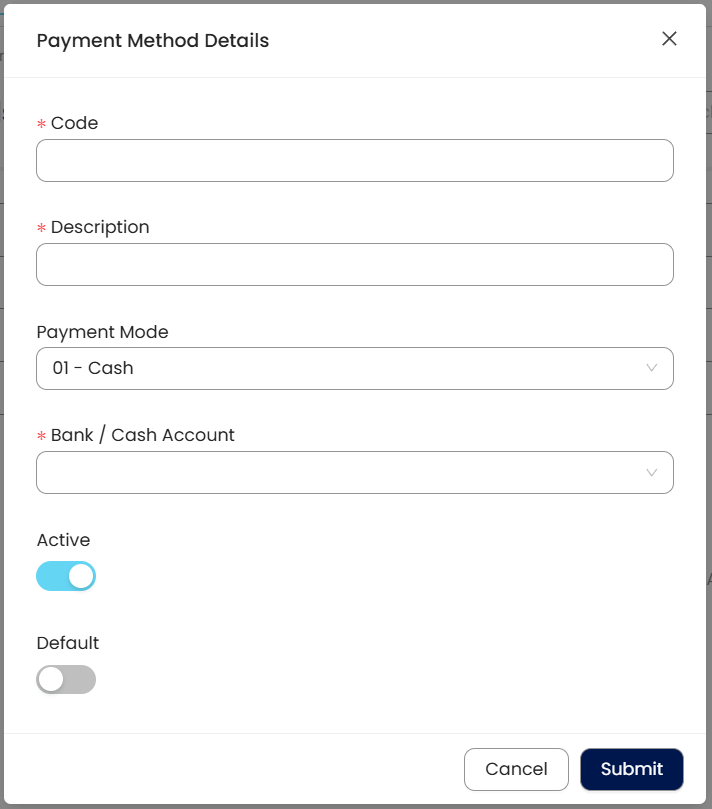
Code: Select the Payment Method code
Description: Name of the Payment Method
Payment Mode:
01 - Cash
02 - Cheque
03 - Bank Transfer
04 - Credit Card
05 - Debit Card
06 - e-Wallet / Digital Wallet
07 - Digital Bank
08 - OthersBank / Cash Account: Choose from a selection based on what was set up under Chart of Accounts > Current Assets > Cash at Bank.
Active: Set this Payment Method active
Default: Set this Payment Method as default
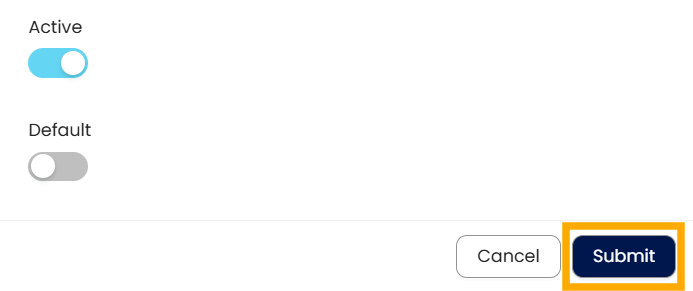
After setting up the Payment Method Details click Submit.
Application:
Use the newly created payment method when recording receipts and payments in invoices, bills, or journals.
Automate reconciliation by linking transactions to the correct payment account.
Standardize payment processing across departments for accurate reporting.
Simplify cash flow management by tracking all payment types consistently.
Note:
Setting up payment methods is a prerequisite for using online payment features. Without defining the payment method, online transactions cannot be processed correctly.
System Scope: N3 AI Accounting (formerly QNE AI Cloud Accounting)
Was this article helpful?
That’s Great!
Thank you for your feedback
Sorry! We couldn't be helpful
Thank you for your feedback
Feedback sent
We appreciate your effort and will try to fix the article