
Overview:
The Report Information Stamp feature automatically prints essential system details on reports and document forms generated in QNE Optimum. These details include:
Date and time the report was generated
Username of the person who generated the report
Software version
Software name
This feature strengthens audit trails, improves accountability, and ensures printed reports always show accurate and traceable information. It can be applied to transaction reports and financial or summary reports such as the Book of Accounts.
Scenario:
During an audit, the auditor requires proof that all printed Book of Accounts reports were generated from the correct system version and by authorized users. To comply, you enable the Report Information Stamp, so each printout clearly displays the date, time, software details, and responsible user.
Procedure:
Step 1: Access the Report Information Stamp Settings
Go to the Maintenance tab, Select System Options, Open the Report Tab
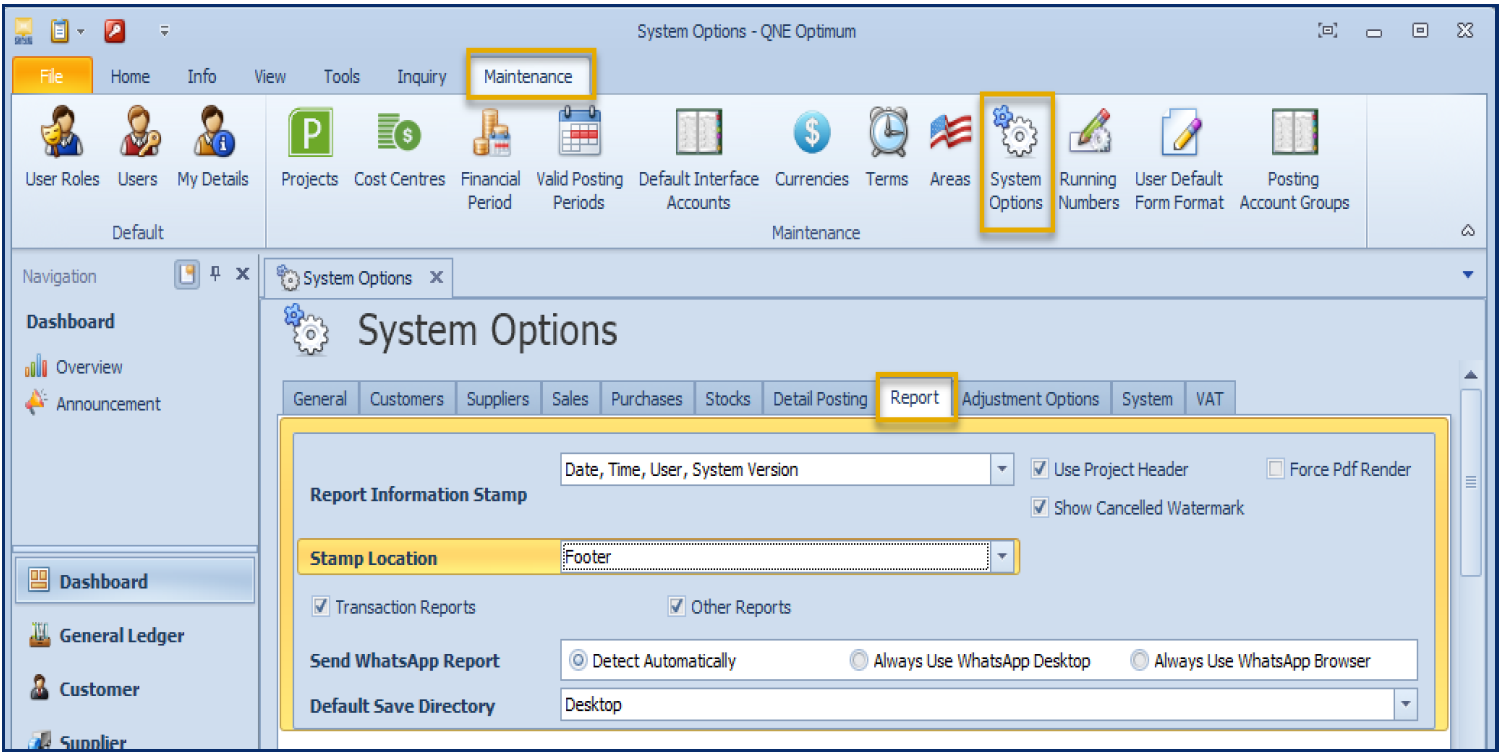
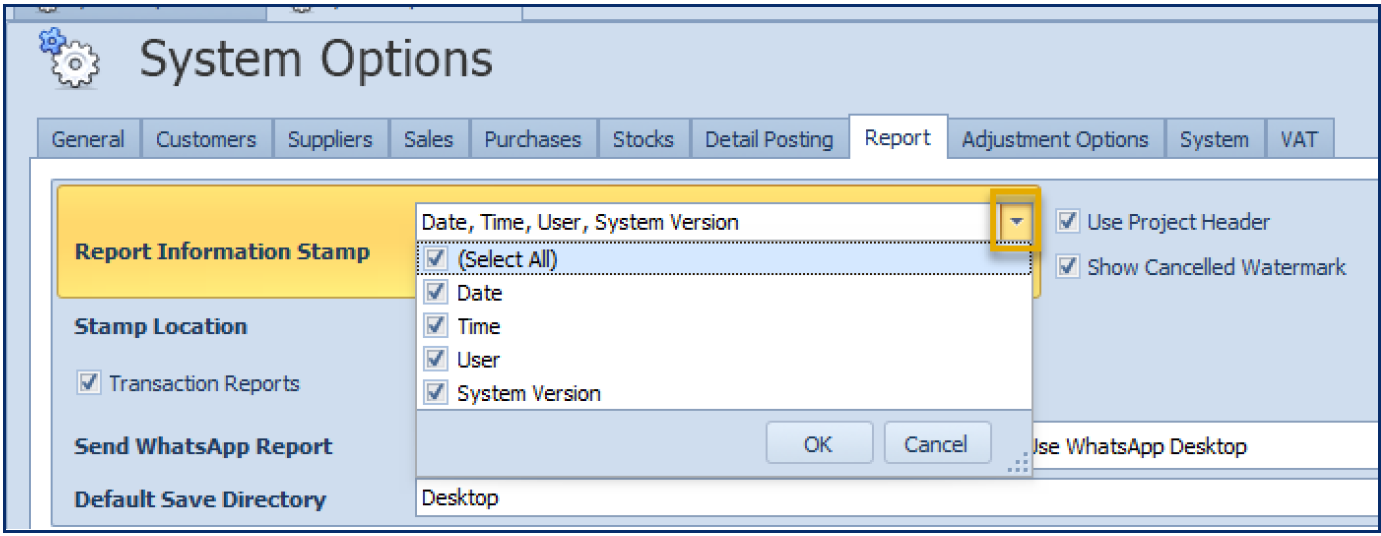
Step 2: Configure the Report Information Stamp
In the Report Information Stamp, select the information you want to include on the printed output.
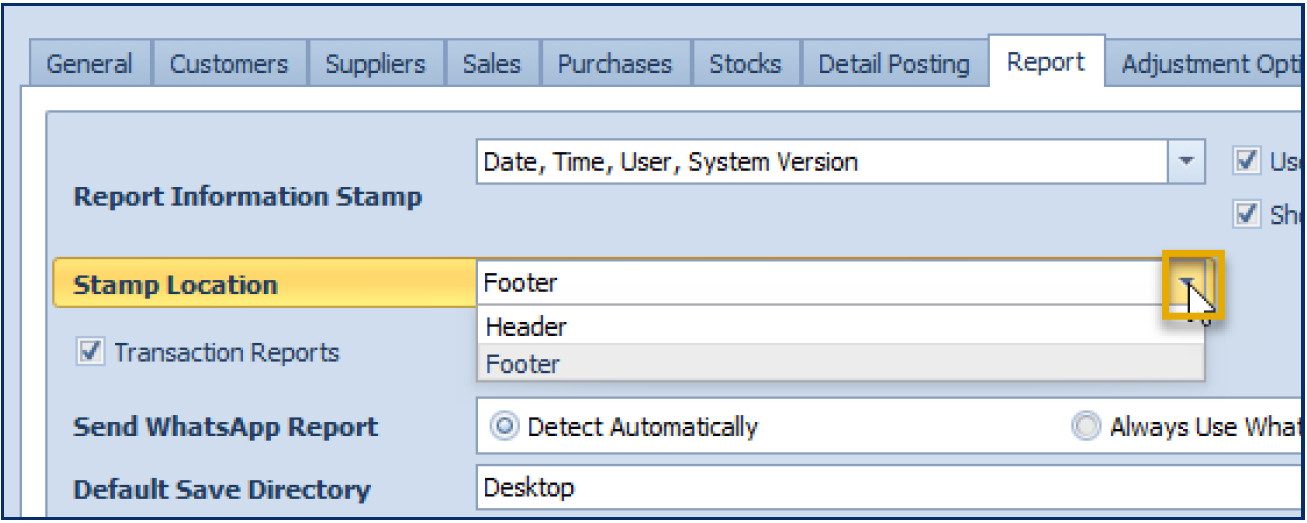
For Stamp Location, choose where the information will appear.
Step 3: Review Additional Options
Under Stamp Location
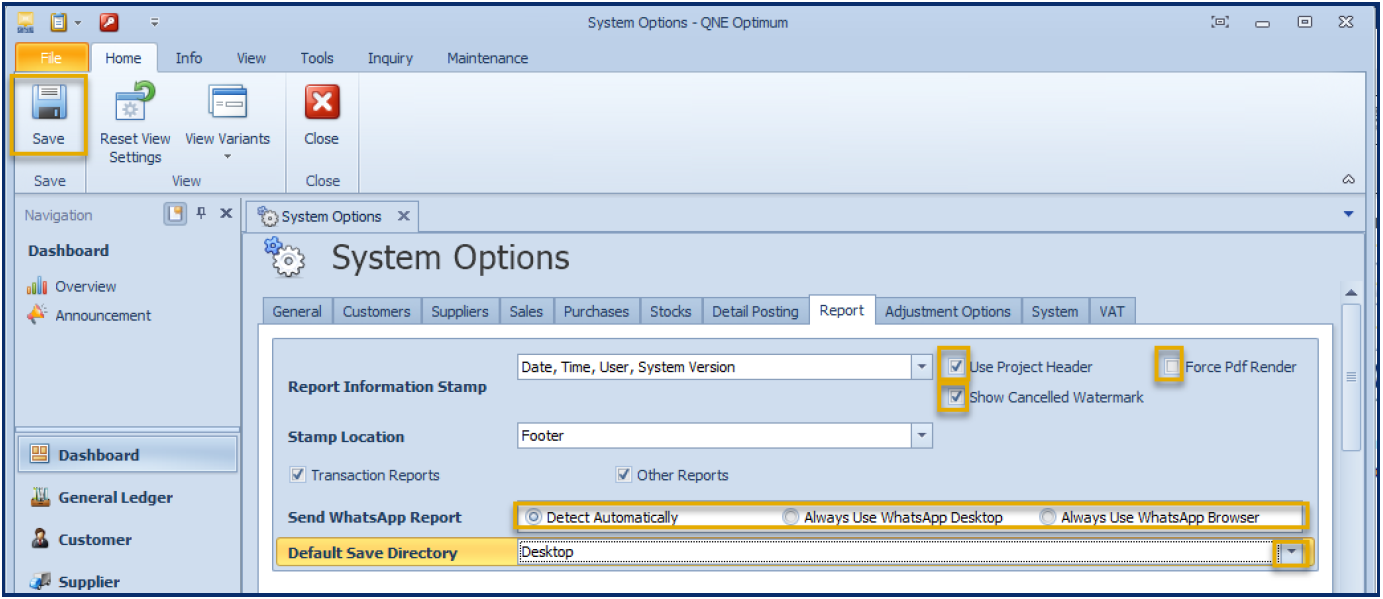
Transaction Reports — Applies the stamp to forms such as Sales Invoice, Bills, and other transactional outputs.
Other Reports — Applies the stamp to Financial and Summary Reports including the Book of Accounts.
Send WhatsApp Report - Not required for stamping; leave as needed.
Default Save Directory - Select the default folder where reports will be saved.
Additional Options
Use Project Header - If checked, reports for transactions tagged with a project will display the project header.
Show Cancelled Watermark - If enabled, any cancelled transaction will display the “Cancelled” watermark on the printout.
Forced pdf Reader - When ticked, reports will always preview using the built-in PDF renderer.
Save the Configuration
Click Save. Your updated settings will now apply to all future report printouts.
Application:
You can use the Report Information Stamp to:
Strengthen audit trails by showing system details and user accountability on printed records
Ensure distributed or filed reports contain accurate, up-to-date system and user information
Support compliance during internal or external audits
Improve traceability in financial reporting cycles
Reduce errors caused by duplicate or outdated printed copies
Sample Preview with stamp that reflects the selected information.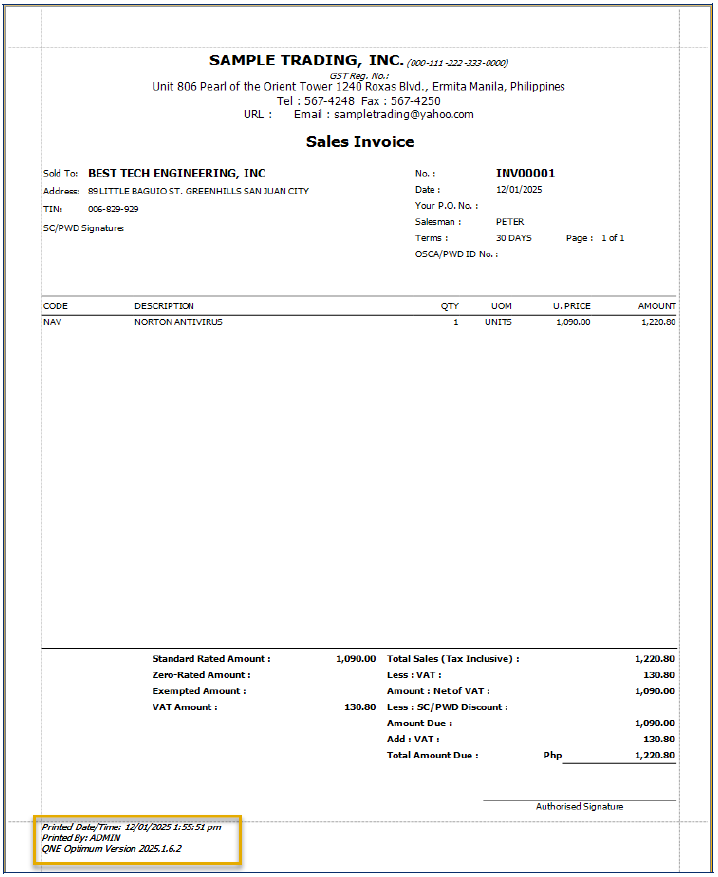

Was this article helpful?
That’s Great!
Thank you for your feedback
Sorry! We couldn't be helpful
Thank you for your feedback
Feedback sent
We appreciate your effort and will try to fix the article