
Overview:
Customer credit notes are issued to correct overbilling, process returns, or apply agreed-upon discounts. In QNE Cloud Accounting, recording a customer credit note properly ensures that customer balances are accurate, sales records are corrected, and financial statements reflect true values. This guide outlines the step-by-step process to help users confidently create credit notes and link them to original transactions where needed.
Scenario:
A customer reports that they were overcharged on a previously issued invoice due to a duplicated item. To correct the billing error, a credit note must be issued to reduce the receivable balance. This transaction will either offset an existing invoice or be used later against future billings.
Procedure:
Step 1: Navigate to Customer Credit Note Screen
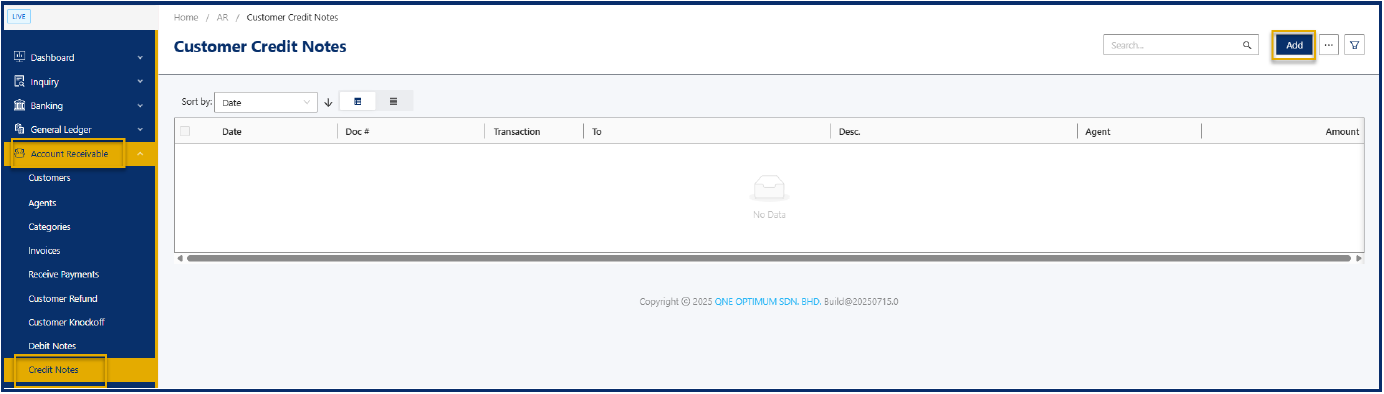
Navigate to Accounts Receivable > Credit Notes.
Click Add to create a new customer credit note.
Step 2: Complete the Credit Note Header
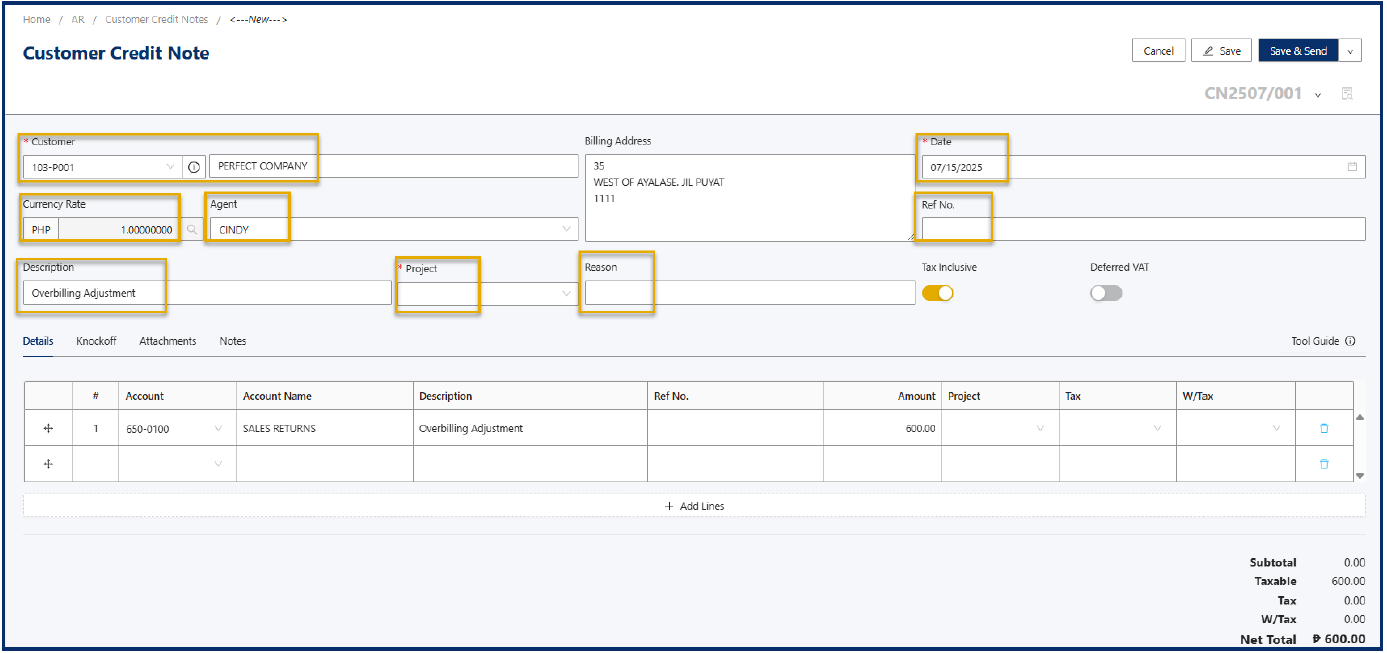
Complete the following fields:
Customer Code – Select the customer for whom the credit applies.
Date – Set the transaction date (defaults to today).
Currency - Defaults to 1 for PHP. For foreign currency, manually enter the exchange rate.
Agent – Auto-fills from the customer profile; select manually if not pre-set.
Ref No. – Enter the invoice number or internal reference for traceability. (Optional)
Global Description - Enter the general reason for the credit (e.g., “Overbilling Adjustment”).
Project - (Optional) Select if the credit relates to a specific project.
Reason - State the specific cause of the credit note (e.g., Duplicate item on invoice).
Tax Inclusive - Tick if the credit amount already includes VAT. Leave unticked if not.
Step 3: Enter Customer Credit Notes Line Details
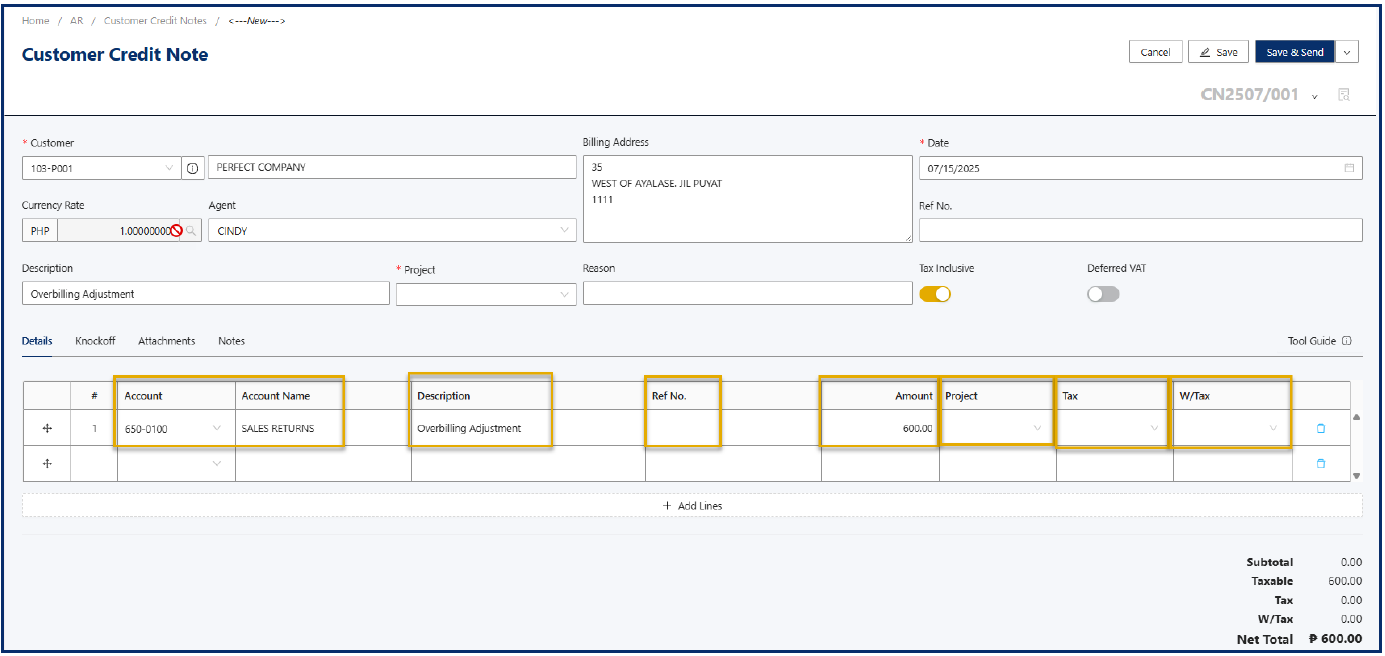
Under the line items section:
Account – Select the appropriate reversal account (e.g., Sales Returns and Allowances).
Account Name – Auto-fills based on the selected account.
Description – By default, mirrors the global description; edit if needed.
Ref No. - Optional; use for internal tracking or links to related documents.
Amount – Enter the amount to be credited.
Tax – Select the applicable VAT code, if any.
WTax – Select a withholding tax rate if necessary (optional).
Step 4: Go to Knockoff Tab and Match the appropriate Transaction
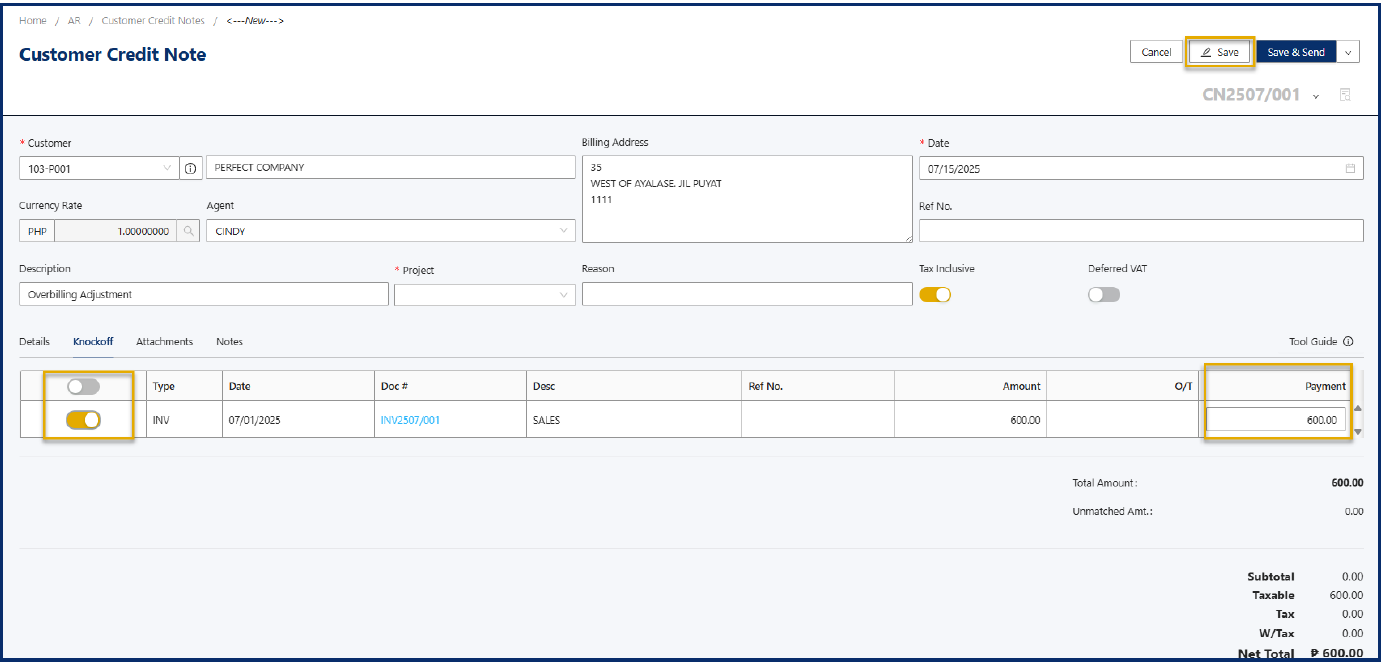
In the Knockoff Tab
Enable the checkbox under the Match column beside the invoice(s) to which the adjustment will apply.
Payment - Amount will auto-fill based on invoice balance, but you can edit this manually if the payment covers multiple invoices or is a partial payment.
Step 5: Confirm the Transaction
A confirmation prompt will appear:
“Create customer credit note success.”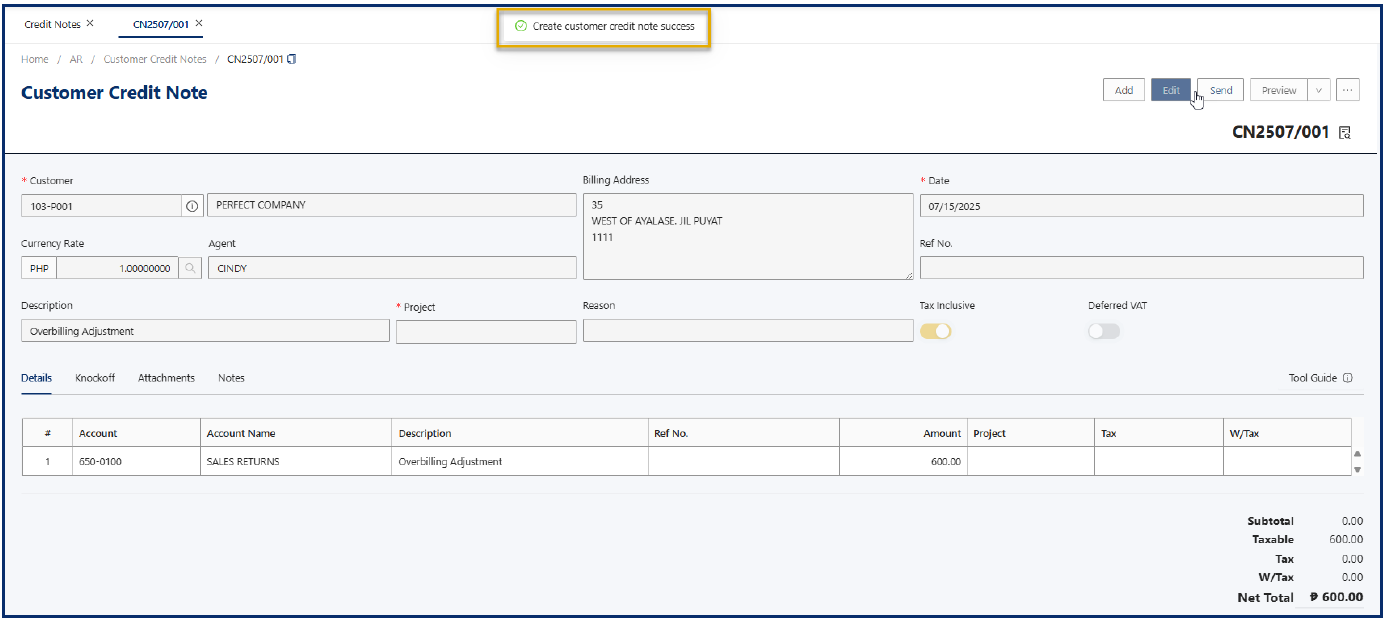
Application:
Customer Prime Office Supplies was billed ₱15,000, but a duplicated item worth ₱3,000 was later identified.
Steps to issue a credit note:
Navigate to Credit Notes and click Add.
Select Prime Office Supplies.
Set the Date to July 15, 2025.
Global Description: Overbilling Adjustment.
Reason: Duplicate item billed on Invoice INV-1109.
Add a line item:
Account: Sales Returns and Allowances
Description: Adjustment for duplicated billing
Amount: ₱3,000
Tax Code: Vatable (12%)
Go to the Knockoff tab, match it to INV-1109, and apply ₱3,000.
Click Save.
The credit note is now linked to the invoice, and the customer’s balance is updated accordingly.

Was this article helpful?
That’s Great!
Thank you for your feedback
Sorry! We couldn't be helpful
Thank you for your feedback
Feedback sent
We appreciate your effort and will try to fix the article