Overview:
In N3 AI Accounting (formerly QNE AI Cloud Accounting), every stock item is created with a Base Unit of Measurement (Base UOM)— typically the smallest measurable unit such as Piece, Unit, or Pack. However, many businesses purchase or sell goods using different packaging or quantity units, such as Box, Carton, or Bundle. The Multi-UOM feature allows inventory and purchasing users to define these alternative units so quantities can be entered in familiar packaging while the system automatically converts everything to the Base UOM for accurate inventory tracking.
Scenario:
A computer parts distributor stocks the item ADATA 8GB DRR4 RAM in UNIT(S) (Base UOM). However, suppliers deliver them in BOX of 5 units. To avoid manual conversions, the Inventory Manager adds “BOX” as an additional UOM with a conversion rate of 5, so purchasing staff can simply enter the quantity in BOX while the system handles the internal conversion.
Procedure:
Add an Additional Unit of Measurement
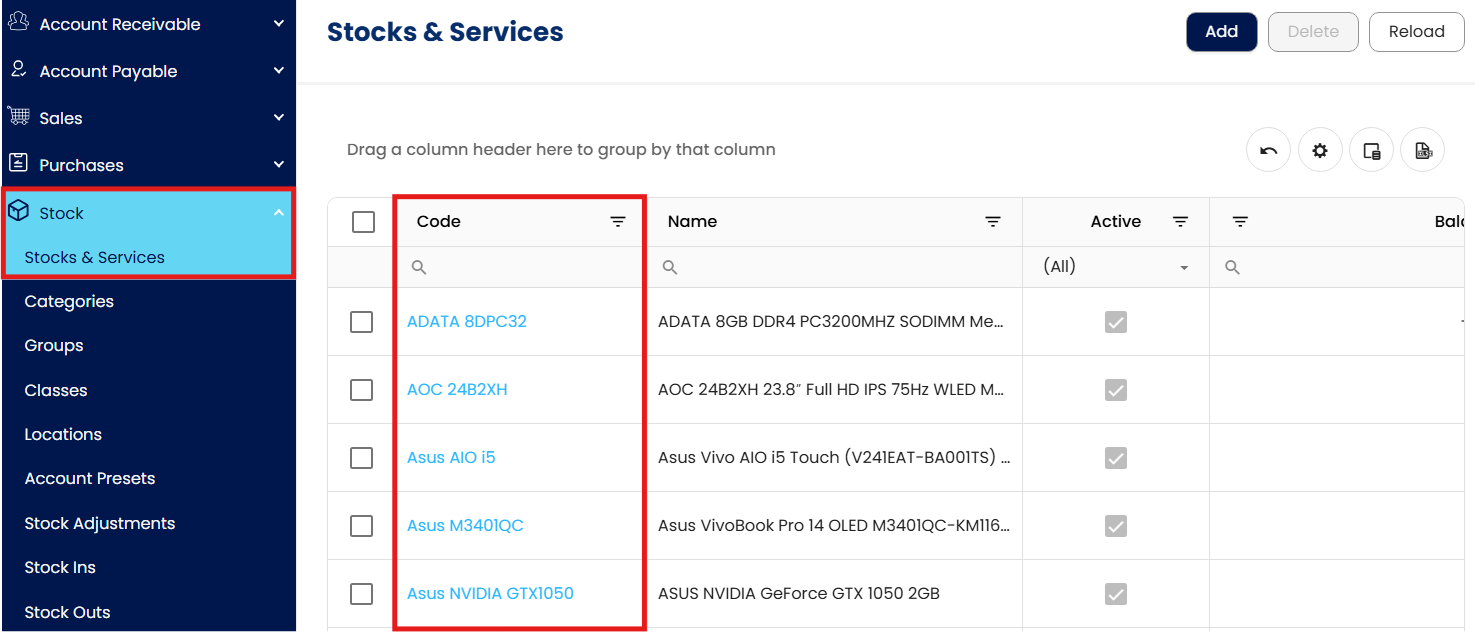
Go to Stock > Stocks & Services, then select the code of the stock item you want to update.
Click Edit at the upper right.

In the UOM tab, click the Add Line (+) button at the bottom of the UOM table.
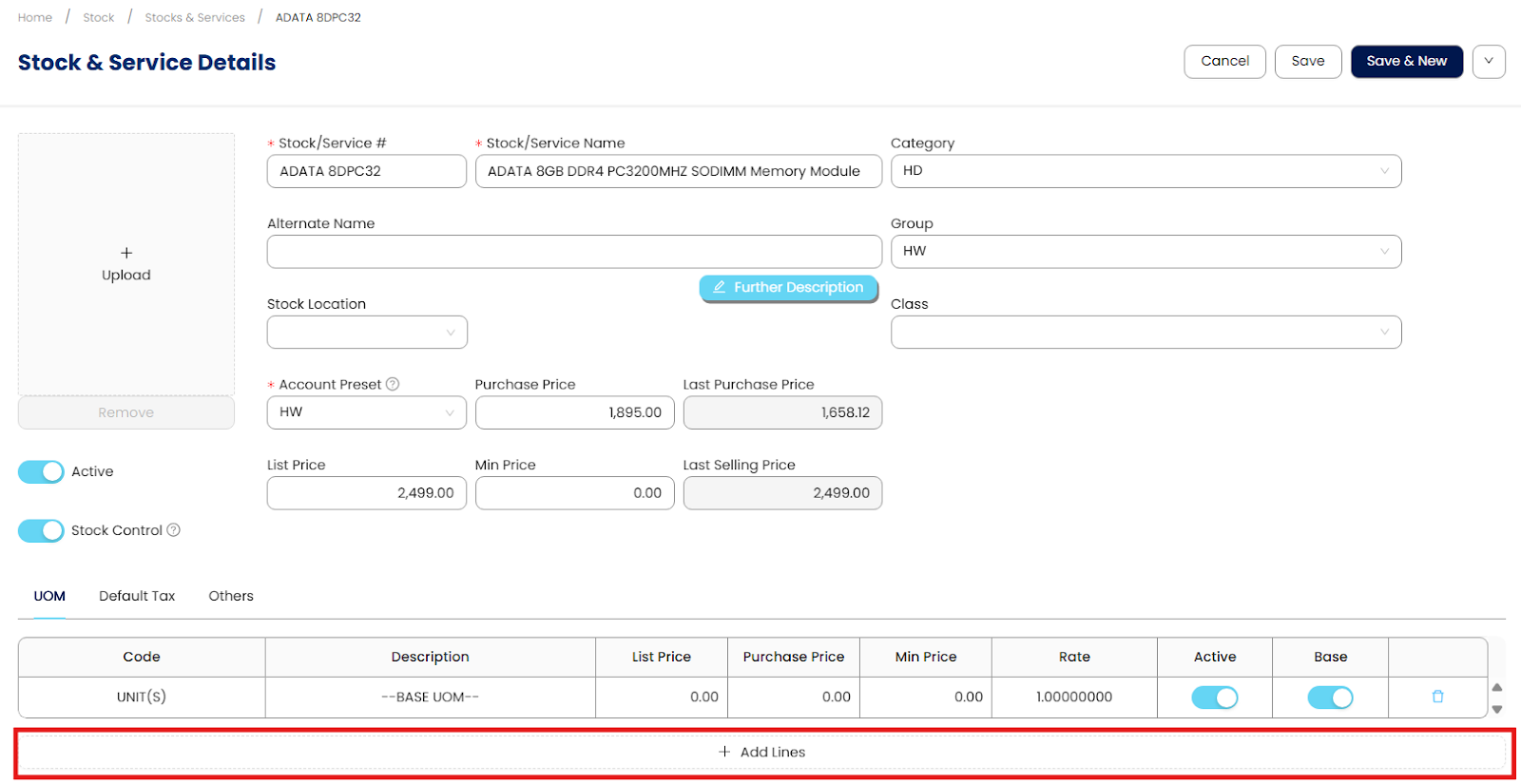
In the new row, enter the following information:
Code – UOM code (e.g., BOX, PACK, CARTON).
Description – Optional description of the UOM.
List Price – Selling price for this UOM (optional).
Purchase Price – Purchase price for this UOM (optional).
Min Price – Lowest allowable selling price (optional).
Rate – Conversion rate based on the Base UOM.
Example: If 1 BOX = 5 UNIT(S), enter 5.00000000Active – Turn on to make the UOM available for use.
Base – Leave this off; only one UOM can be the Base UOM.

Click Save or Save & New at the top-right to apply the changes.
Validate the UOM in a Transaction:

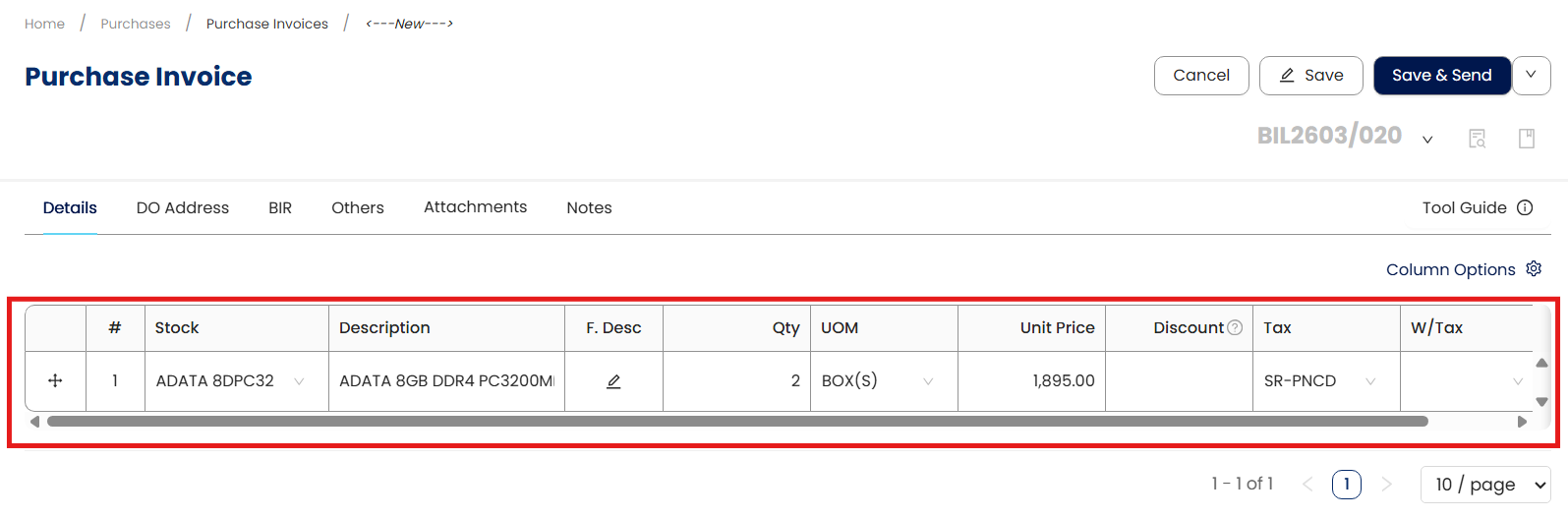
Go to Purchases > Purchase Invoice, then add the stock item containing the new UOM.
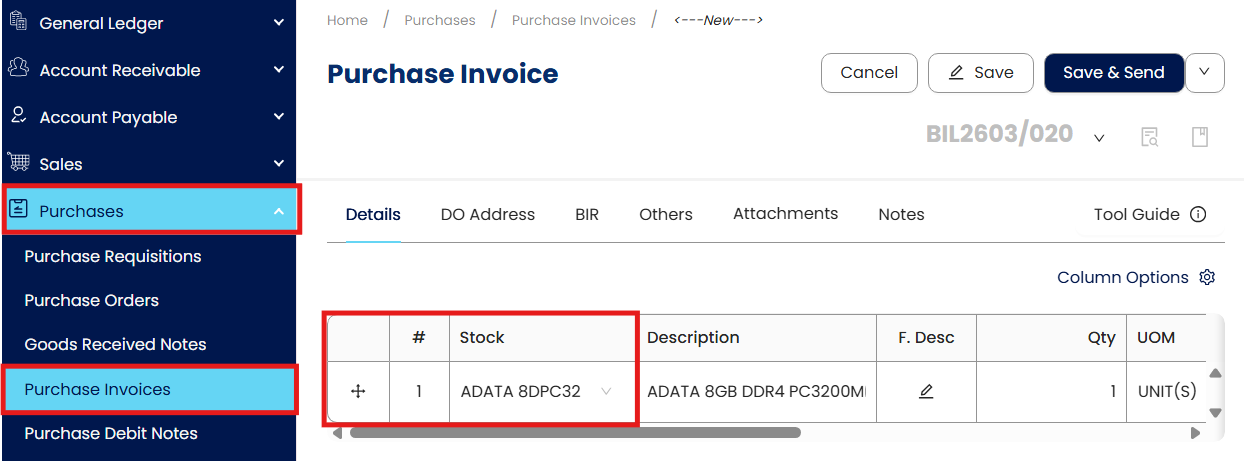
In the UOM column, open the dropdown and confirm the newly added UOM appears.
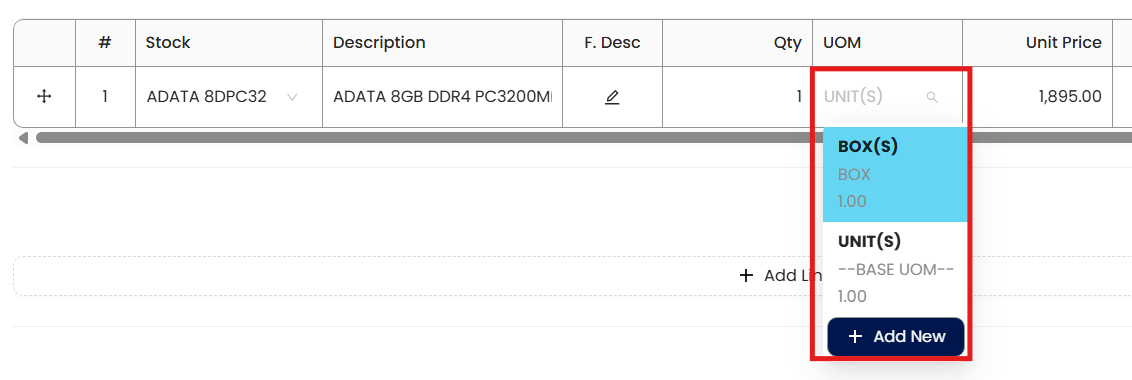
Select the UOM (e.g., BOX) and enter a quantity. The system automatically converts the entered quantity to the Base UOM for inventory tracking and reporting.
Application:
Streamline Sales and Purchasing by allowing users to enter quantities in familiar packaging units.
Maintain consistent inventory accuracy through automatic conversion into the Base UOM.
Support flexible pricing by assigning different list, purchase, or minimum prices per UOM.
Enable clear, standardized reporting since all quantities in inquiries and reports are shown in the Base UOM.
Reduce errors by eliminating manual conversion during high-volume or mixed-unit transactions.
System Scope: QNE AI Cloud Accounting / N3 AI Accounting
Was this article helpful?
That’s Great!
Thank you for your feedback
Sorry! We couldn't be helpful
Thank you for your feedback
Feedback sent
We appreciate your effort and will try to fix the article