Overview:
A Purchase Invoice records a bill received from a supplier for goods or services purchased by the company. It confirms the amount owed to the supplier and creates the corresponding Accounts Payable (AP) entry in the accounting system.
In N3 AI Accounting, creating a Purchase Invoice ensures supplier transactions are accurately recorded, payment obligations are tracked, and financial reports reflect the company’s liabilities.
This feature is typically used by accounts payable staff, finance teams, and procurement personnel to record supplier invoices, verify purchase details, and track payment obligations.
Scenario:
A company receives an invoice from a supplier for office furniture delivered the previous week. The accounts payable officer reviews the supplier’s invoice and verifies that the items and quantities match the delivery documents.
To properly record the transaction and track the payment due to the supplier, the officer creates a Purchase Invoice in QNE AI Cloud Accounting. This records the payable amount, updates the appropriate expense or inventory accounts and records the payable amount, and sets the payment due date based on the agreed payment terms.
Procedure:
STEP 1: Access the Purchase Invoice Screen
In the navigation pane click Purchases.
Select Purchase Invoice.
Click Add.
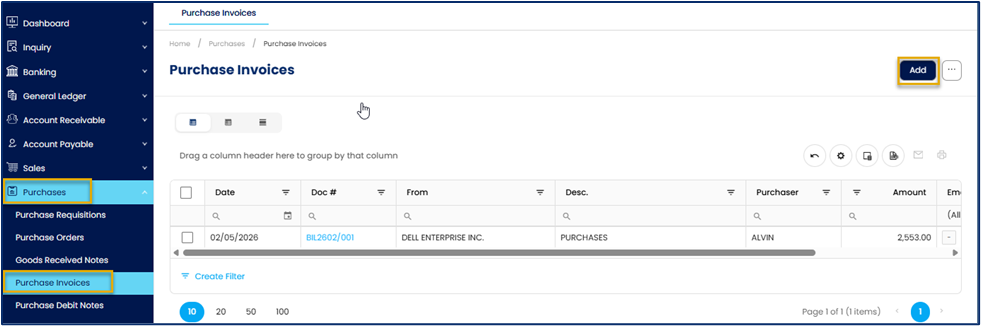
After clicking Add, you can create the Purchase Invoice using one of the following methods:
Option 1: Create a Purchase from a Purchase Requisition or Purchase Order or Goods Received Note
Use this method when the billing is linked to an existing Purchase Requisition or Purchase Order or Good Received Note.
1. Select the Supplier Code.
2. Choose the related Purchase Order or Purchase Requisition or Goods Received Note.
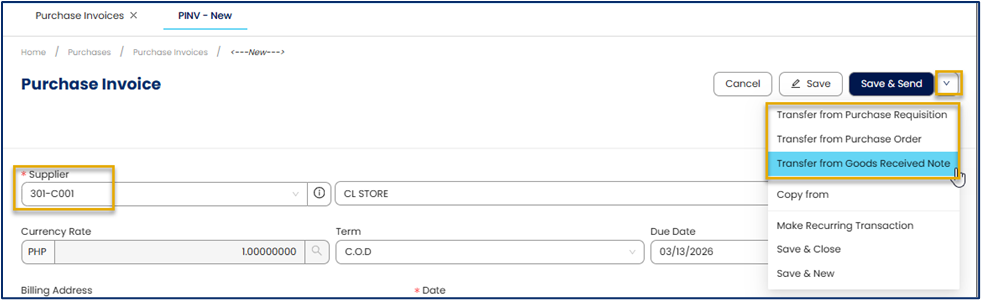
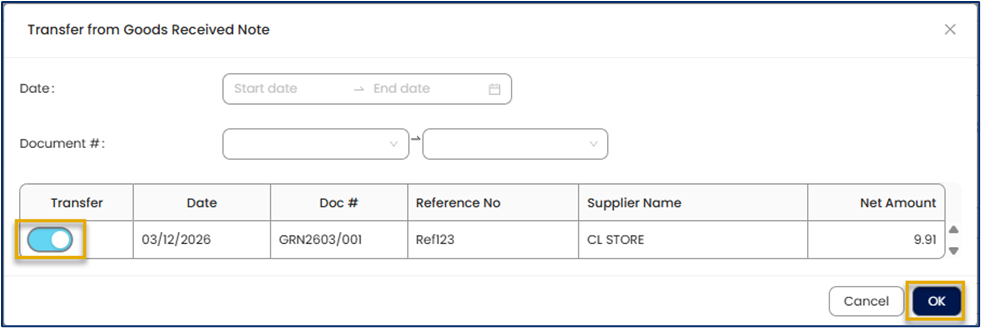
3. Toggle on the Purchase Requisition or Purchase Order or Goods Received Note you want to transfer
4. Click OK.
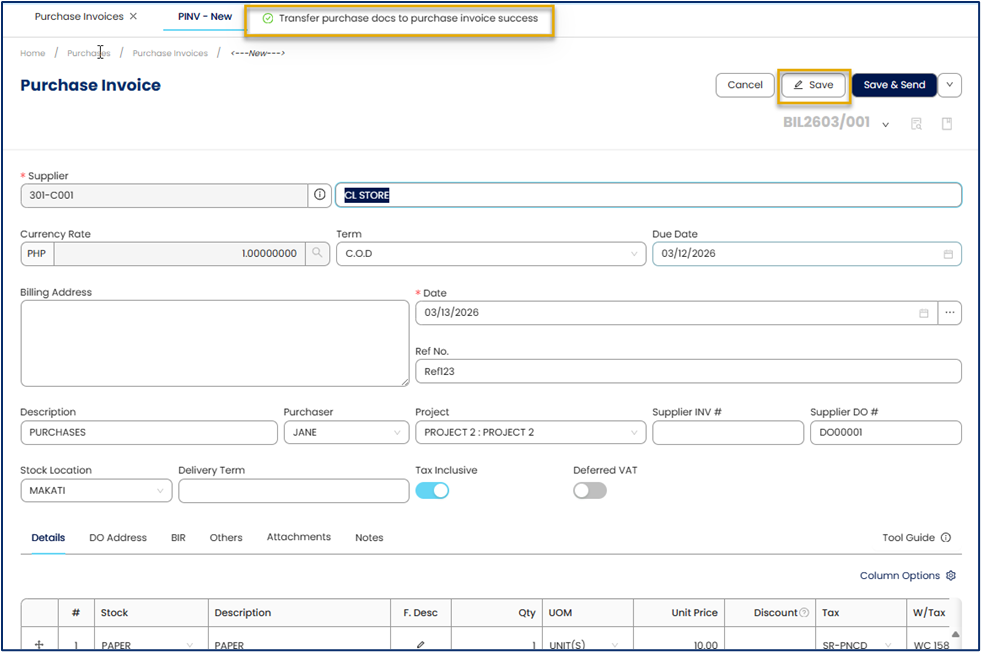
A confirmation message appears: "Transfer purchase docs to purchase invoice success!”
5. Review the transferred item details.
6. Click Save.
A confirmation message appears: “Create purchase invoice success”

Option 2: Create the Purchase Invoice manually
Use this method when the billing is not linked to a Purchase Requisition or Purchase Order or Goods Received Note.
1. Enter the required Header Information, including
- Supplier Code – Unique identifier for the supplier.
- Billing Address - Automatically populated after selecting the Supplier Code.
- Date - Date when the goods are received.
- Currency – Default is 1 for PHP. If using a foreign currency, manually enter the correct exchange rate.
- Term – Payment terms agreed with the supplier (e.g., 30 days).
- Due Date – The payment due date calculated from the Term.
- Ref No. - Internal reference number.
- Description – Brief description of the transaction.
- Purchaser – Person responsible for the purchase.
- Project – Associated project (if applicable).
- Supplier INV # - Reference number from the supplier’s invoice
- Supplier DO # - Supplier delivery order number.
- Stock Location – Location where goods will be stored.
- Delivery Term - Delivery condition.
- Tax Inclusive – Enable if prices include tax.
- Deferred VAT - Enable if the VAT for the transaction will be recorded but paid in a later tax reporting period.
2. In the Detail section, enter the item information
- Stock – Stock code of the item.
- Description – Automatically populated with the stock name once the Stock code is selected.
- F.Desc – Additional details about the item if needed.
- QTY - Quantity received.
- UOM - Unit of Measure (e.g., pcs, boxes, liters).
- Unit Price - Cost per unit.
- Discount – Any Discount applied.
- Tax - Applicable tax rate
- WTAX - Withholding tax (if applicable).
3. Click Save.
A confirmation message appears indicating “Create purchase invoice success”, confirming that the purchase invoice has been successfully recorded.

The transaction is now reflected in Accounts Payable and will appear in supplier outstanding balances and financial reports.
Application:
The Purchase Invoice feature can be used to::
Record Maintain accurate accounts payable records by documenting supplier invoices.
Monitor supplier payment obligations and upcoming due dates.
Support financial reporting and audit requirements with traceable supplier transactions.
Improve procurement control by matching invoices with Purchase Orders and Goods Received Notes.
Analyze supplier spending and purchasing trends.
System Scope: QNE AI Cloud Accounting / N3 AI Accounting
Was this article helpful?
That’s Great!
Thank you for your feedback
Sorry! We couldn't be helpful
Thank you for your feedback
Feedback sent
We appreciate your effort and will try to fix the article