Overview:
The Purchase Return feature allows users to record items returned to a supplier after they have been purchased or received.
Recording a Purchase Return ensures that inventory quantities are adjusted correctly and that the supplier’s outstanding balance is reduced when the return is applied to a related purchase invoice.
This transaction is typically performed by accounting staff, purchasing teams, or inventory managers when goods are defective, incorrectly delivered, or no longer required.
After recording the return, the amount can be applied to the supplier’s outstanding invoice using the Knockoff function, which offsets the payable balance.
Scenario:
Sample Trading Inc. purchased 100 wireless keyboards from a supplier. After receiving the shipment, the warehouse team discovered that 4 units were damaged during delivery.
The company decides to return the damaged items and request a deduction from the supplier’s invoice.
To update inventory quantities and reduce the supplier’s payable balance, the accounting staff records a Purchase Return transaction in N3 AI Accounting and applies it to the related Purchase Invoice using the Knockoff tab.
Procedure:
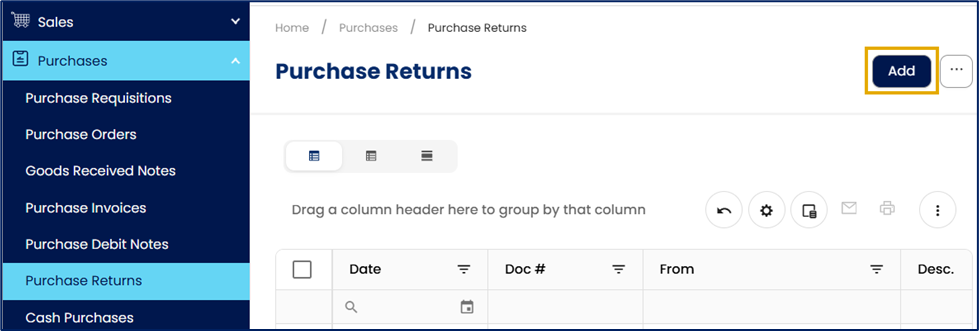
In the navigation pane, go to Purchases > Purchases Returns. Click Add to create a new Purchase Return.
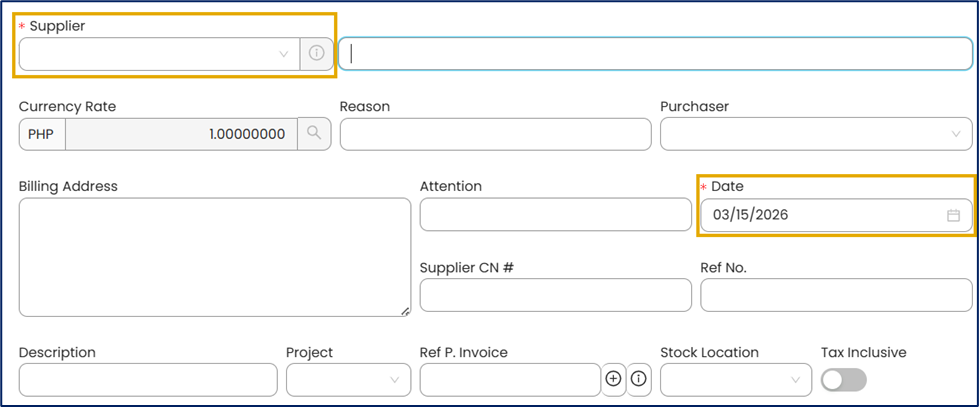
In the header section, enter the required transaction information.
Supplier – Select the supplier to whom the items will be returned.
Date – Specify the date of the Purchase Return transaction.
You may also enter additional information if applicable:
Reason – Specify the reason for returning the items.
Description – Enter a brief description of the return transaction.
Ref No. – Enter an additional reference number if required (for example, supplier reference or internal document number).
Stock Location – Select the warehouse or inventory location where the returned items will be deducted.
Supplier CN # – Enter the supplier’s credit note number if provided.
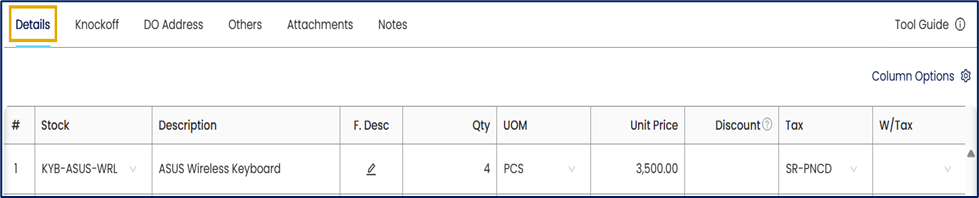
Under the Details tab, enter the returned item details:
Stock – Select the item code.
Qty – Enter the quantity being returned.
UOM – Confirm the unit of measurement.
Unit Price – Verify the item price.
Tax – Select the appropriate tax code if applicable.
W/Tax – Select the withholding tax code if required.
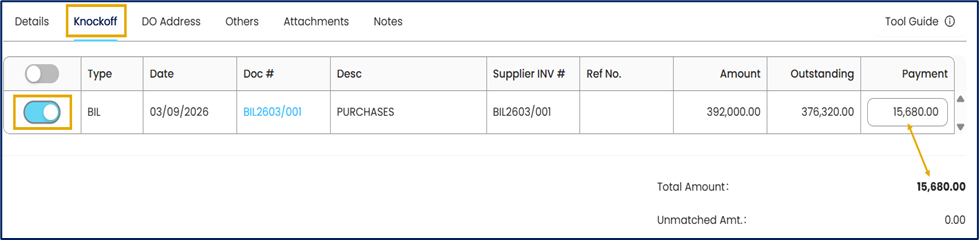
If you want to offset the return against an outstanding supplier invoice:
Go to the Knockoff tab.
The system displays all outstanding payable transactions for the selected supplier.
Select the invoice(s) to which the Purchase Return will be applied.
Verify the applied amount.
Note:
This step is optional. The Purchase Return can be saved first and applied to supplier invoices later through the Supplier Knockoff function.
Click Save to record the Purchase Return.
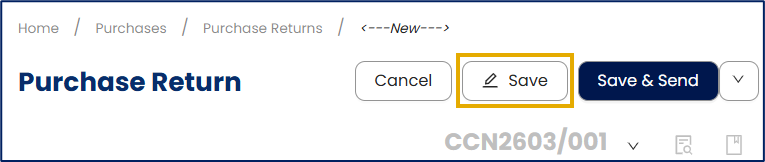
After saving:
The returned quantity is deducted from inventory.
The supplier balance reflects the recorded return.
The return can be applied to supplier invoices through Supplier Knockoff function when needed.
Application:
The Purchase Return feature supports several operational and accounting scenarios, including:
Return defective or damaged goods
Record items returned to suppliers due to damage, defects, or quality issues while ensuring inventory quantities and supplier balances are updated accurately.
Correct incorrect deliveries
Process returns when suppliers deliver the wrong items, incorrect quantities, or items that do not match the purchase order.
Adjust excess or unwanted inventory
Return surplus items to suppliers and reduce on-hand inventory levels to maintain accurate stock records.
Offset supplier invoices with return credits
Apply the Purchase Return to outstanding supplier invoices through the Knockoff function to reduce the company’s accounts payable balance.
Maintain accurate financial records
Ensure that inventory, accounts payable, and tax calculations reflect the actual goods retained by the company.
Support audit and compliance requirements
Maintain proper documentation of returned goods and supplier credits for internal review, reconciliation, and audit purposes.
System Scope: QNE AI Cloud Accounting / N3 AI Accounting
Was this article helpful?
That’s Great!
Thank you for your feedback
Sorry! We couldn't be helpful
Thank you for your feedback
Feedback sent
We appreciate your effort and will try to fix the article